
The Projects Catalog lists every project published to the platform. This page explains how to open the catalog, read the project list, and search for projects.
To open the catalog, click Projects Catalog in the sidebar. The catalog has two parts:
The List of Available Projects
The Project Detail View (the detail view shows the project you select, refer to Inspecting the Project Details for more information)
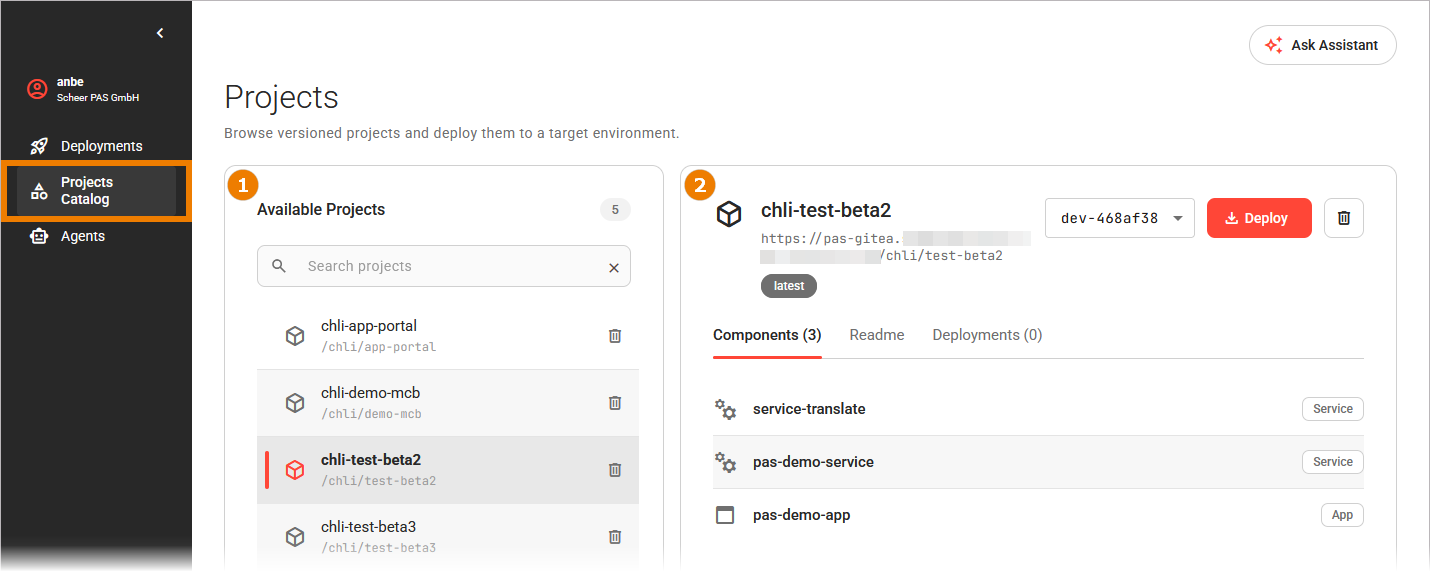
Overview on the Project List
The Available Projects list and its controls sit on the left:
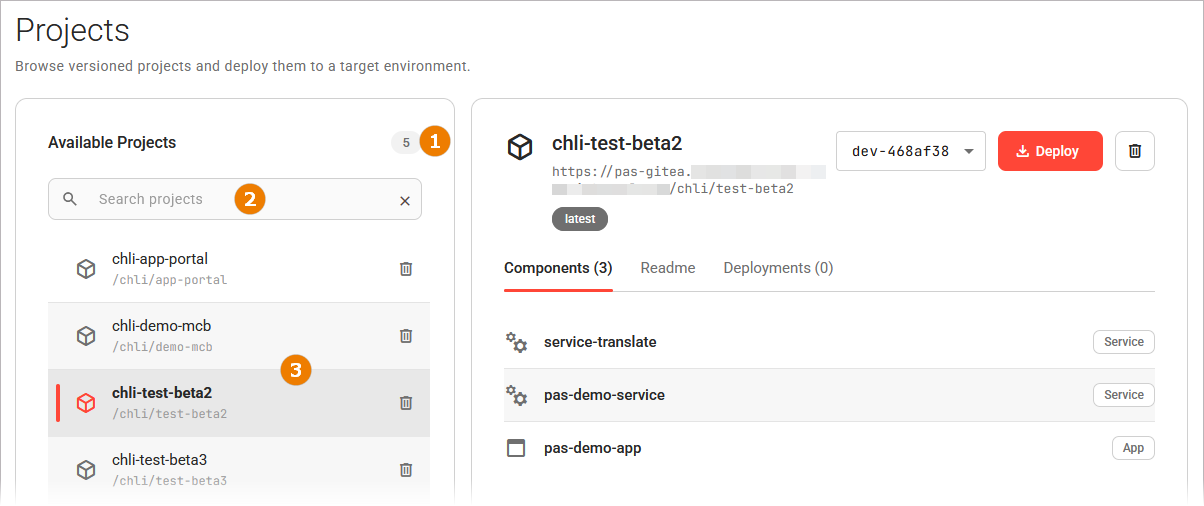
The following options are available:
|
UI Element |
Name |
Description |
|---|---|---|
|
|
Count |
Shows how many projects are in the list. Reflects the number of matches while you search. |
|
|
Search |
Filters the list to the projects that match your search term. |
|
|
Project display |
Shows one entry for each published project. Click an entry to open the project in the detail view. |
|
|
Clear Search |
Displayed only if your search term yields no results. Clears the search term and shows all projects again. 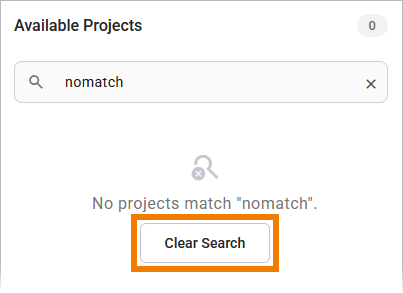
|
Click a project in the list to open its details on the right. The selected project is highlighted in the list:
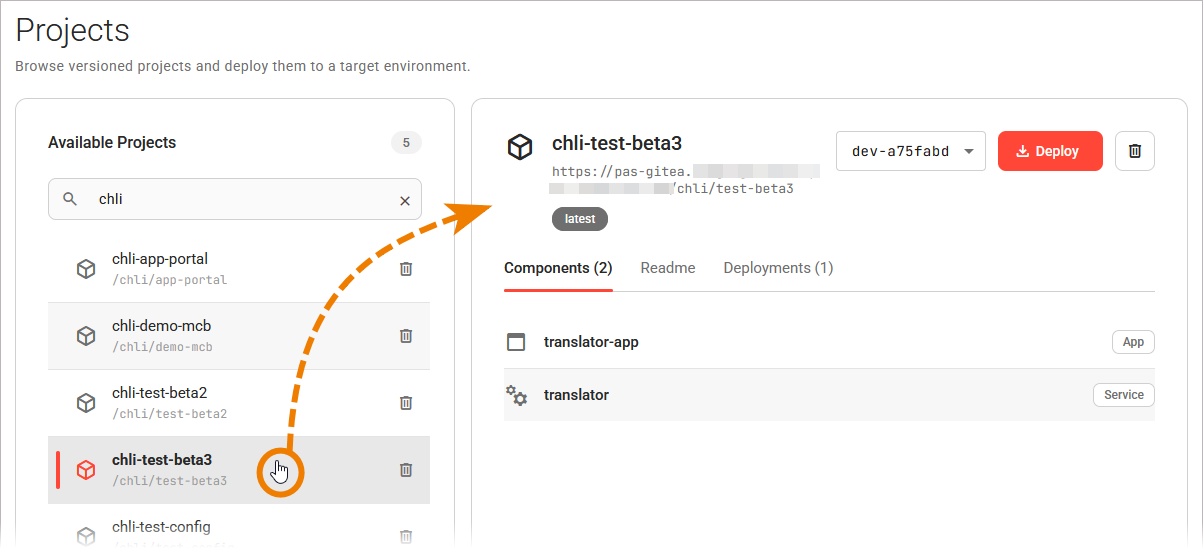
Each project appears once in the list, regardless of how many versions it has. You can select a version in the detail view on the right:
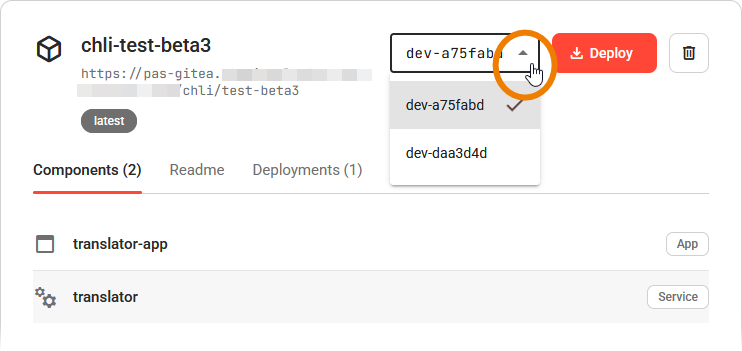
The version selected here is used if you use the Deploy button on top right.
If no project has been published yet, the list shows the message No projects available.
If the catalog cannot be loaded, the list shows an error message with a retry action.
Refer to Error Handling Projects Catalog for the possible error messages and how to resolve them.
Searching for a Project
To narrow down the list, enter parts of a project name in the Search projects field. The list updates as you type and shows only the projects that match:
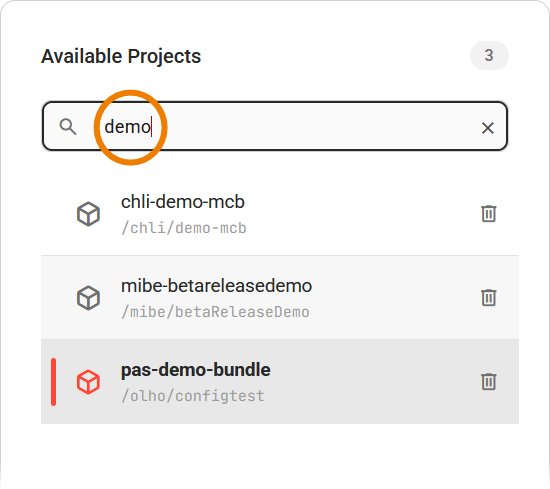
Read the count to see how many projects match. Clear the search field to show all projects again.
If no project matches your search term, the list shows the message No projects match "<your search term>". together with an action to clear the search (see above).