
You can deploy the same project again, and you can deploy a different version of it. In both cases you use the deploy flow from the projects view. Refer to Deploying a Project for the full deploy flow.
Every deploy action creates a new deployment. The Control Hub does not update a running deployment in place, so deploying a project again does not overwrite an existing deployment. Instead, you get an additional, separately named deployment that you monitor and manage on its own.
Deploying a Different Version
To deploy different version of a project, select the project in the projects view. Open the version selector in the project details, where you can choose between Branch versions and Tag versions. Select the version you want, then use the Deploy option in the project details header. Select the platform and enter a deployment name, then click Deploy in the dialog.
The version you select in the header is the version that is deployed. Refer to Inspecting the Project Details for more information on the version selector.
Redeploying a Project
If you want to deploy the same project but, for example, on another platform or under a different name, repeat the deploy flow for the same version.
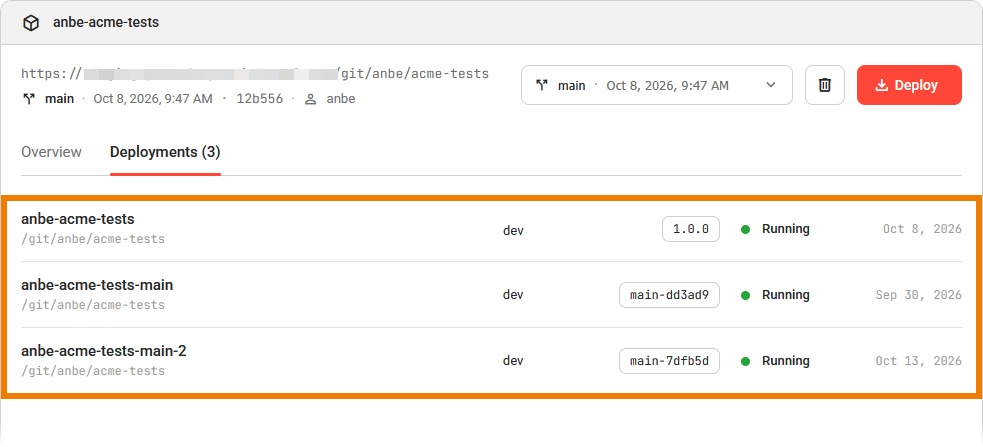
A deployment name must be unique on a platform. If a deployment with the proposed name already exists in the selected platform, the Control Hub appends a number, for example myproject-2. Keep the suggested name or enter a name of your choice.
Checking Existing Deployments
Before you deploy a project again, check where it already runs so you do not create a deployment you do not need.
The Deployments tab on the project details page lists the existing deployments of the project with their version, status, and deployment date, so you can see where it already runs before you deploy it again:
Refer to Inspecting the Project Details for more details on the Deployments tab, and to Working With the Deployments View for more information where to manage your deployments.