
An LLM provider connects the account of a company that supplies large language models (LLMs), for example OpenAI, to the Agent Gateway of one platform. The LLM provider holds the provider API Key: the API Key of that account. The Agent Gateway uses the provider API Key for each call to the LLM provider.
Agents never get the provider API Key. They call the LLM provider with a virtual API Key, which belongs to one LLM provider. Refer to Virtual Keys for details on virtual API Keys, and to Agent Gateway for an overview of the Agent Gateway.
Overview on the Providers View
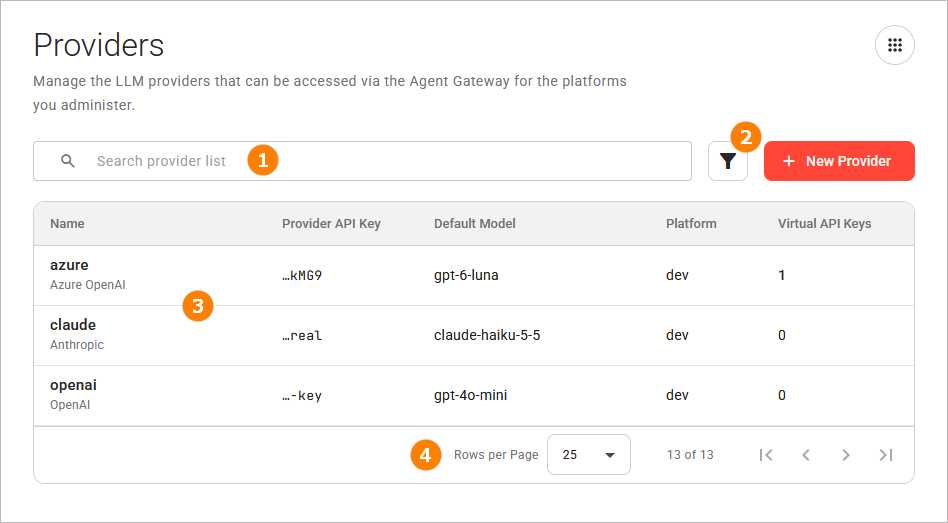
To open the list of LLM providers, click Providers in the Governance group of the sidebar. The Providers view shows the LLM providers of all platforms on which you have access to the Agent Gateway. Each row of the table is one LLM provider of one platform.
The view consists of the following parts:
Click New Provider to create a new provider. Refer to Creating a Provider for details.
The Search Bar
The Search above the table narrows the list to the items that match your search term. Refer to Working With the Control Hub for details on searching, filtering, and sorting.
The Filters
Various filters are available next to the search bar. Refer to Working With the Control Hub for details on filtering, searching, and sorting.
The Providers Table
The table lists one row per provider. It shows the following columns:
|
Column |
Description |
|---|---|
|
Name |
The name of the LLM provider, and its provider type below it. Click the name to open the Provider Details page. Refer to Managing a Provider for details. |
|
Provider API Key |
The last four characters of the provider API Key, for example |
|
Default Model |
The model that a call without a model goes to. The column shows none if the LLM provider has no default model. |
|
Platform |
The platform of the LLM provider. |
|
Virtual API Keys |
The number of virtual API Keys of the LLM provider. Click a number greater than 0 to open the Virtual Keys view, filtered to this LLM provider. A dash (–) shows that the number is not known: you do not have permission to read the virtual API Keys of the platform, or they could not be read. |
The Pagination Controls
The pagination controls below the table split the list into pages. They appear when at least one entry in the content table exists. Refer to Working With the Control Hub for details.
Required Permissions
Each action needs a permission (scope) on the platform of the LLM provider. The connection test is an exception: it needs its scope on at least one platform. An action that is unavailable because you do not have its permission shows You do not have the necessary permissions for this action. when you point at it.
|
Action |
Scope |
Without the Scope |
|---|---|---|
|
See the LLM providers |
|
The LLM providers of the platform are not shown. |
|
Add an LLM provider |
|
The platform is not offered. |
|
Test the connection |
|
The test shows The connection could not be tested. |
|
Change an LLM provider |
|
The fields are locked. Test Connection, Discard Changes, and Save Changes are unavailable. |
|
Remove an LLM provider |
|
Remove Provider is unavailable. |
|
See the number of virtual API Keys |
|
The table and Virtual Keys show a dash (–). The dialog Remove Provider lists no virtual API Keys. |
Refer to Agent Gateway for the permission that opens the Agent Gateway pages.