
Working With the Provider Details Page
In the Providers view, click the name of an LLM provider to open its Provider Details page. To return to the Providers view, click the arrow beside the heading.
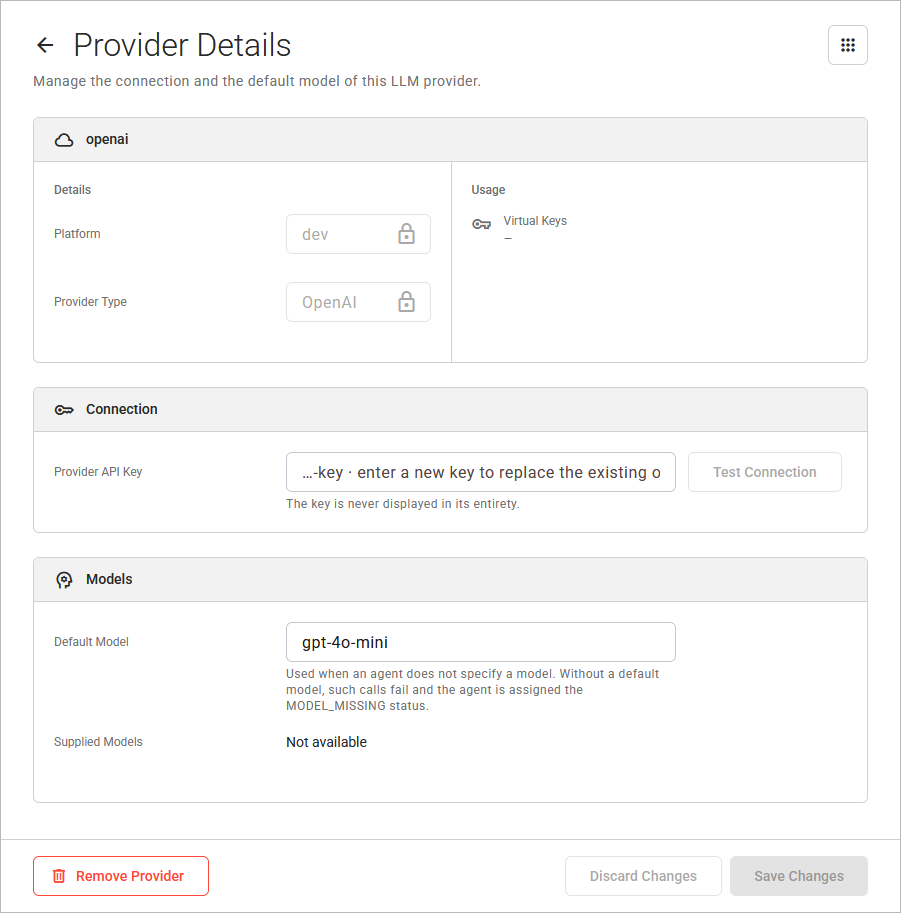
The page consists of the following sections:
|
Section |
Content |
|---|---|
|
<name of the provider> |
|
|
Connection |
Provider API Key, with Test Connection on its right. |
|
Models |
Default Model, and Supplied Models: the number of models that the LLM provider lists for the saved provider API Key, for example 12 models. For Azure OpenAI, Supplied Models always shows No models. Not available means that the models could not be listed. |
Changing a Provider
You can change the following values of an LLM provider. The rules of the provider settings apply, refer to Creating a Provider for details.
|
Value |
How to Change It |
|---|---|
|
Provider API Key |
The field shows the last four characters of the current key, for example …4f2a · enter a new key to replace the existing one.
|
|
Default Model |
Enter the name of a model. After a successful connection test, you can also select a model from the list. Empty the field to remove the default model. |
|
Azure OpenAI settings |
Change Endpoint, API Version, or Deployment Name. |
Test Connection is only available after you enter a new provider API Key.
At the bottom right of the page, the buttons Discard Changes and Save Changes are enabled as soon as a value differs from the saved LLM provider.
-
Discard Changes: Use this option to restore all values and remove the result of a connection test.
-
Save Changes: Use this option to save your changes. The page shows the message Provider <name> saved. The field Provider API Key shows the last four characters of the saved key.
Changes take effect for the next call of an agent, and the agents need no new deployment:
-
All virtual API Keys of the LLM provider use a new provider API Key directly after you save it. The virtual API Keys stay valid. The field hint shows how many virtual API Keys are affected.
-
A new default model applies to each call that gives no model. The virtual API Keys of the LLM provider must permit the new default model.
Removing a Provider
Removing an LLM provider also removes all its virtual API Keys. Agents that use one of these virtual API Keys can no longer call the LLM provider. This cannot be undone.
To remove an LLM provider, proceed as follows:
-
Open the Provider Details page of the LLM provider.
-
Click Remove Provider at the bottom left of the page. The dialog Remove Provider <name>? opens. It lists the virtual API Keys that will be removed and will no longer work, one per line as Virtual Key <name>.
-
Click Remove Provider in the dialog to confirm, or Cancel to abort.
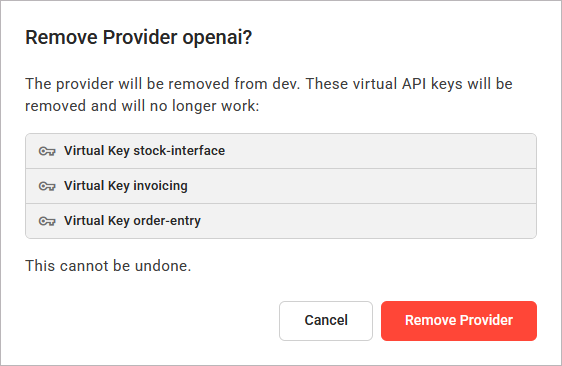
If the LLM provider has no virtual API Keys, the dialog shows No virtual API Key uses it. Read the Virtual Key Details page of a virtual API Key to see which agents use it.
When the LLM provider is removed, the Providers view opens with the message Provider <name> removed.
Related Content
Related Pages: