
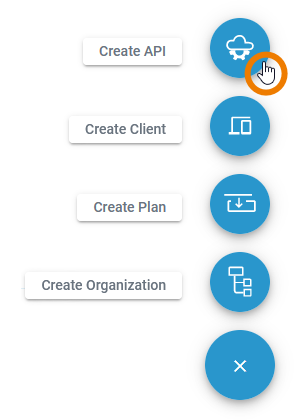
No matter where you are in the API Management, the Create button is always displayed at the bottom right and opens the creation menu.
Click Create API to add a new API:
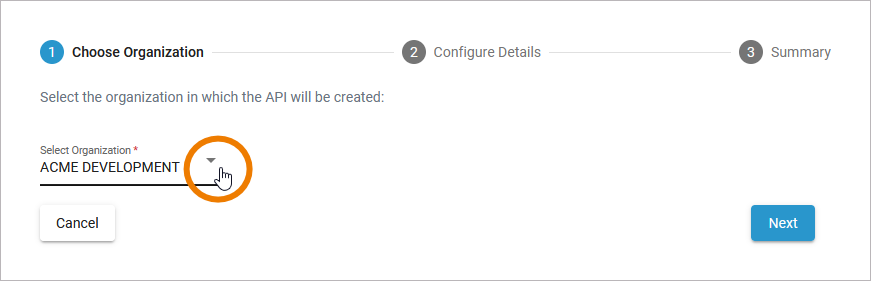
A wizard will guide you through the creation process. In the first step, select the organization in which the API should be created:
Since APIs can only be managed within an organization, you can also create a new API from the empty API tab of an organization details page. Simply use the link Click here to create a new API:
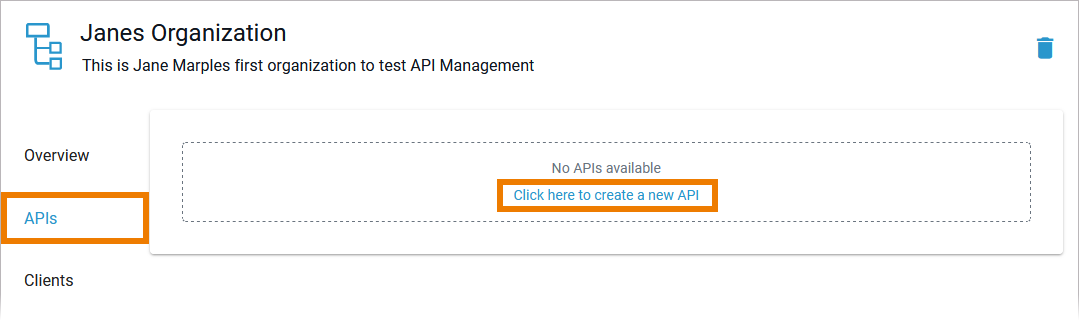
In that case, the organization is already set in the wizard.
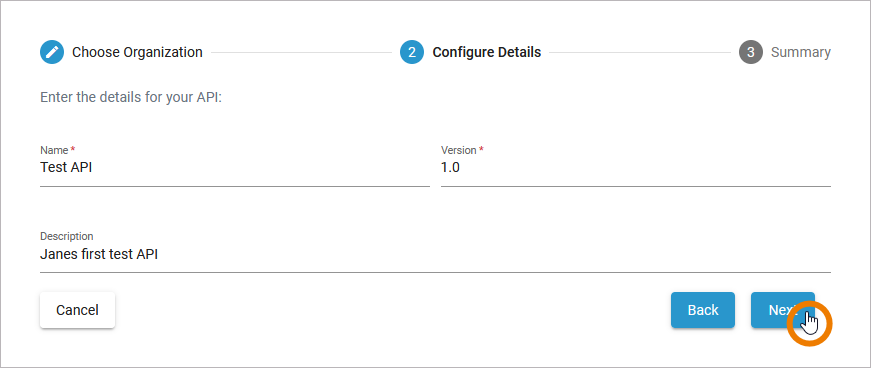
In the next step, you need to enter the following mandatory settings:
-
Name: Enter a name. The name is not changeable after creation.
-
Version: Enter a version number or name.
You can enter numbers and text in field Version. Refer to The Concepts of API Management for detailed information.
You can then enter a description. The description is optional and can also be entered or changed later on the details page. Click Next to continue:
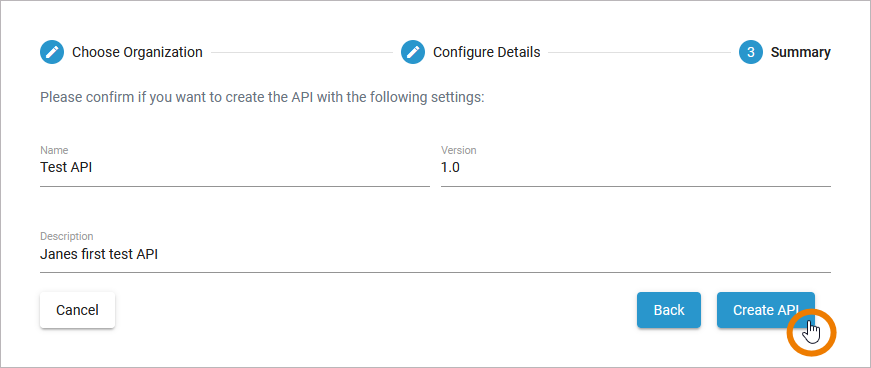
In the next step you can check your entries again. The summary is read-only.
-
Click Create API to finish.
-
Click Back if you want to revise your settings.
-
Click Cancel to abort the whole creation process.
After a successful creation, you will be taken to tab Settings of the API details page where you can start to configure your API. Newly created APIs are always of type private:
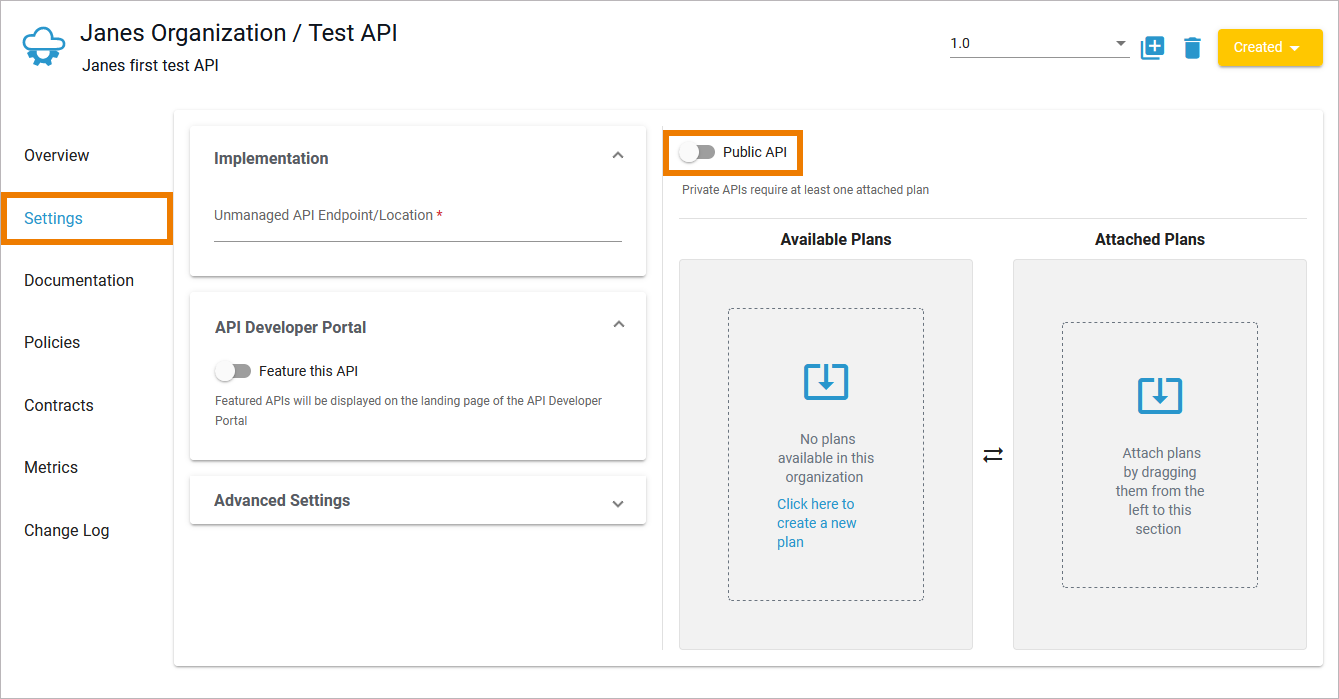
For detailed information about all API details, refer to API Settings.