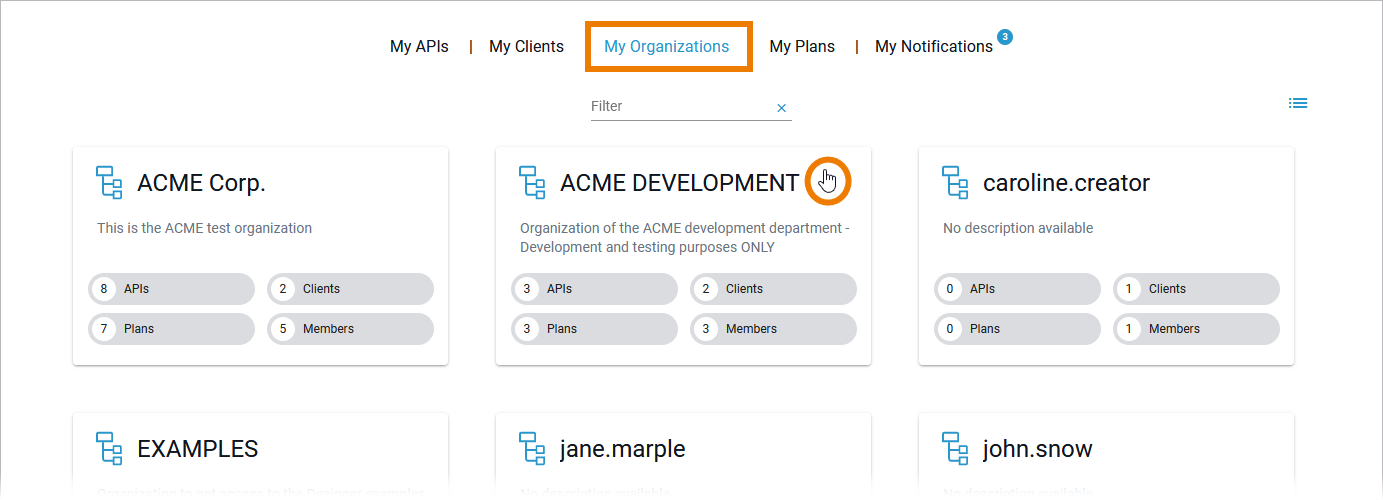
To view all organizations your user is allowed to see, go to tab My Organizations in the navigation bar. If you want to revise the settings of an organization, you need to open its details page. Click on the tile of the organization you want to edit.
For detailed information about navigating and filtering the list refer to Working with the API Management.
The details page opens and displays the Overview tab:
Basic Settings
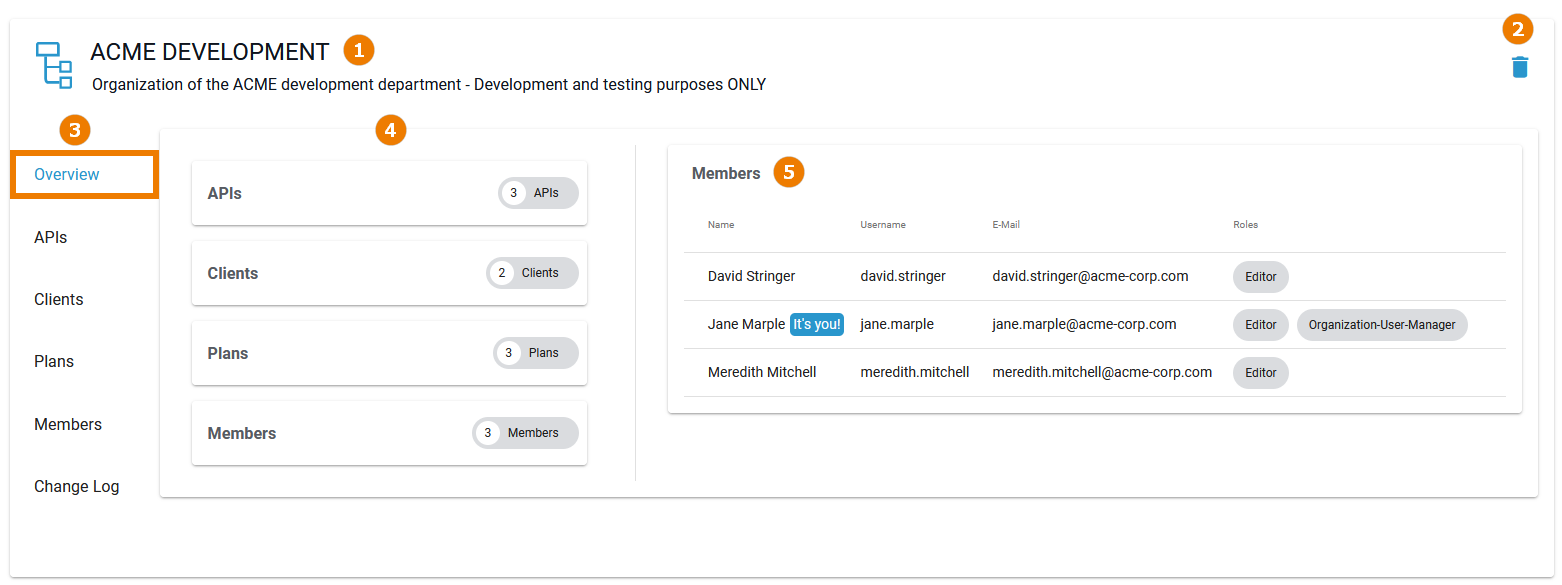
The Overview tab displays the most important information about an organization and also offers various functionalities:
|
UI Element |
Name |
Description |
|---|---|---|
|
Basic Settings (available in all tabs) |
||
|
(1) |
Name / Description |
|
|
(2) |
Delete |
Click Delete to remove the organization. You will need to confirm the deletion in a separate pop-up window. |
|
(3) |
Navigation Bar |
Use the navigation bar to access the various tabs of the organization's details page (details of all tabs see below). |
|
Overview Tab Settings (available only in tab Overview)
|
||
|
(4) |
Organization Contents |
At a glance, the user can see in this section which and how many elements are currently managed in this organization. The displayed entries are interactive: Click on an entry to switch to the corresponding tab. |
|
(5) |
Members |
In this section you can see at a glance what members this organization has and what roles they have been given. |
Organization Details
In the navigation bar of the details page, you will find several tabs where you can manage the various settings of the organization.
APIs
Open the APIs tab to see all existing APIs for this organization.
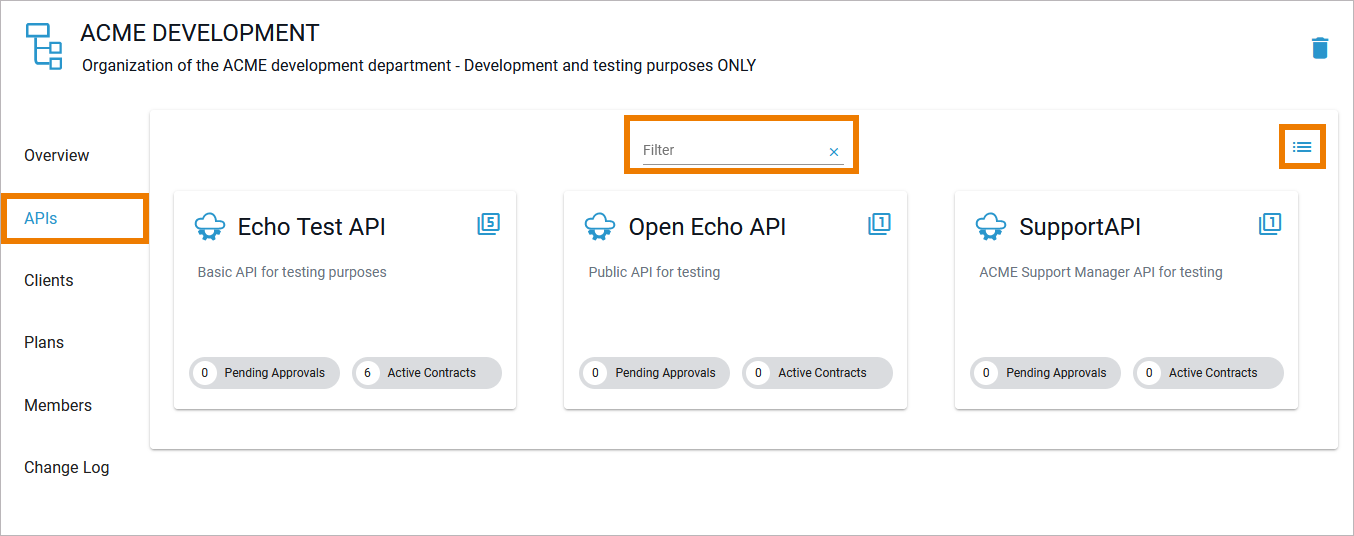
In the APIs tab you can...
-
... use the filter field to search the list of APIs.
-
... click on an API tile to open its details page where you can manage the API.
-
... switch between the tile view and the list view.
Clients
The Clients tab displays a list of all clients of this organization.
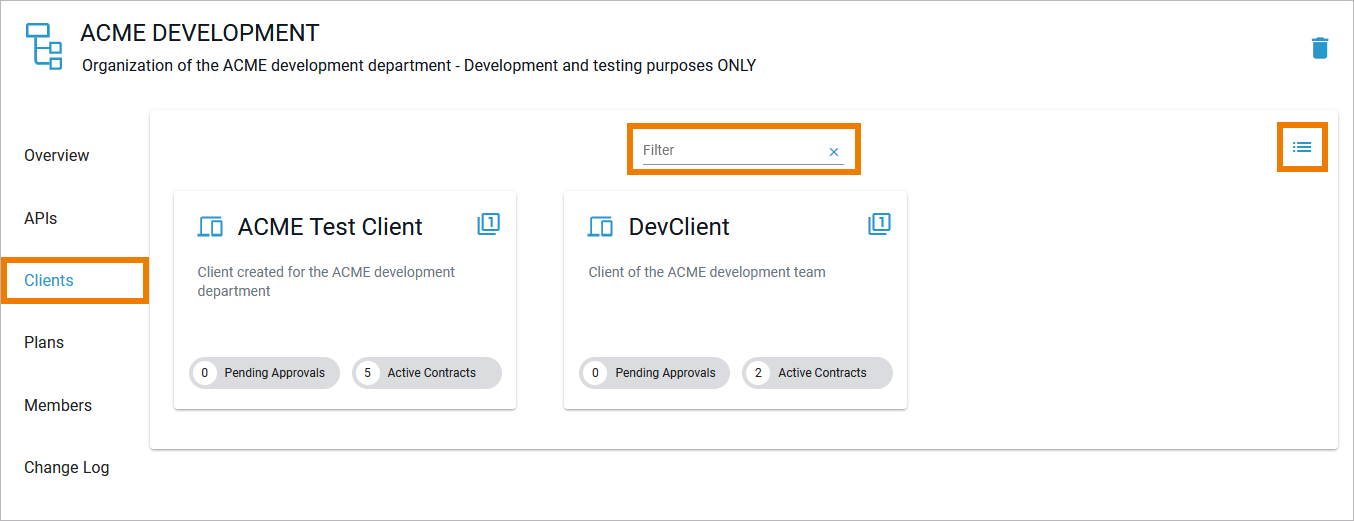
In the Clients tab you can...
-
... use the filter field to search the list of clients.
-
... click on a client tile to open its details page where you can manage the client.
-
.. switch between the tile view and the list view.
Plans
In the Plans tab, all existing plans for this organization will be displayed.
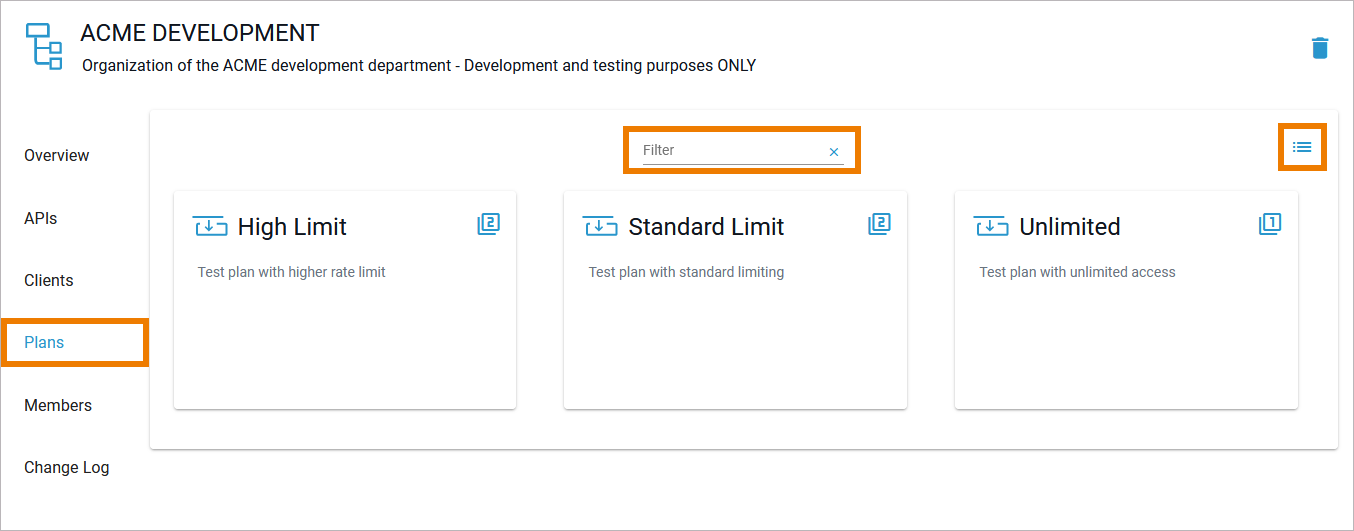
In the Plans tab you can...
-
... use the filter field to search the list of plans.
-
... click on a plan tile to open its details page where you can view the plans details and manage the plan (as long as it is not locked).
-
.. switch between the tile view and the list view.
Members
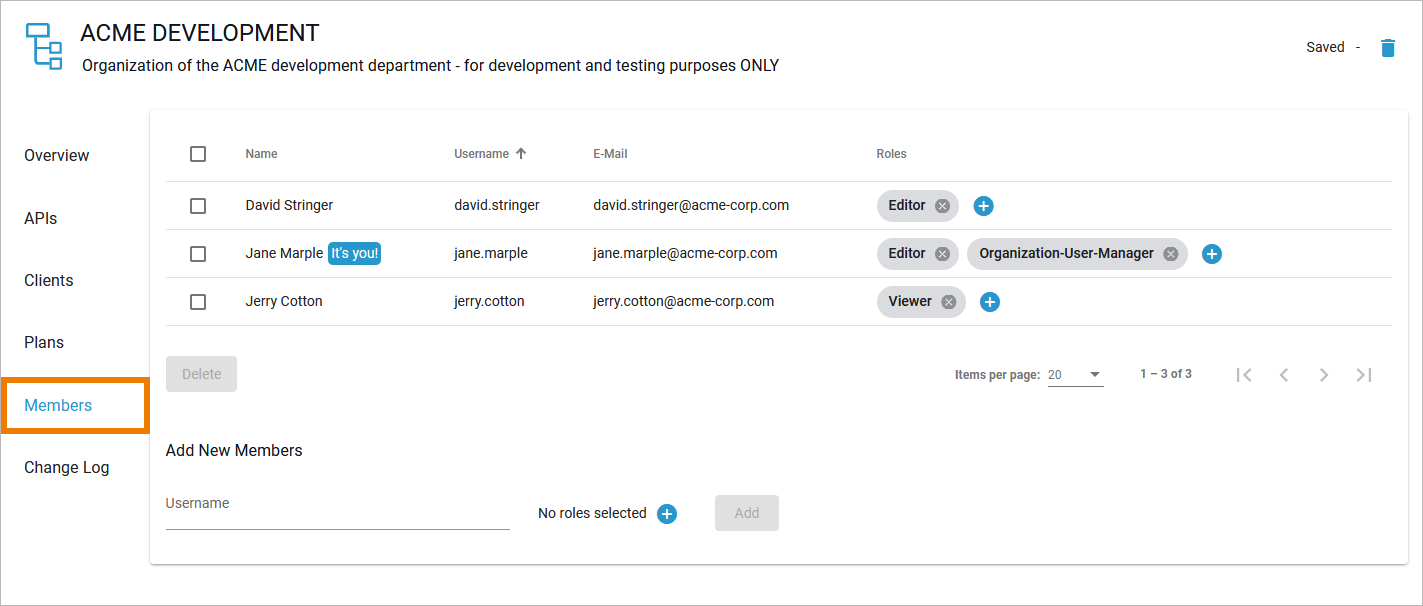
In the Members tab you can find a list of all users assigned to this organization and manage them. Refer to Administrating Organization Members for detailed explanations.
Change Log
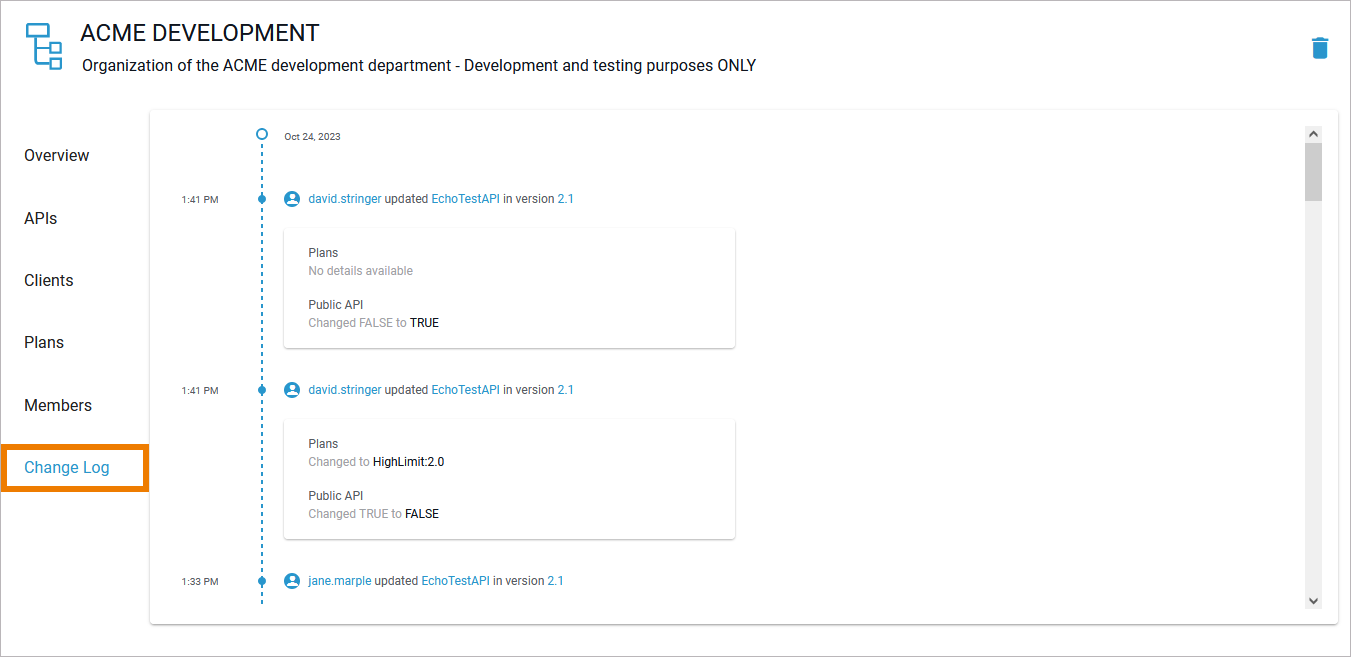
Open the Change Log tab to display a list of all changes made by members of this organization. The content of the change log is read-only.