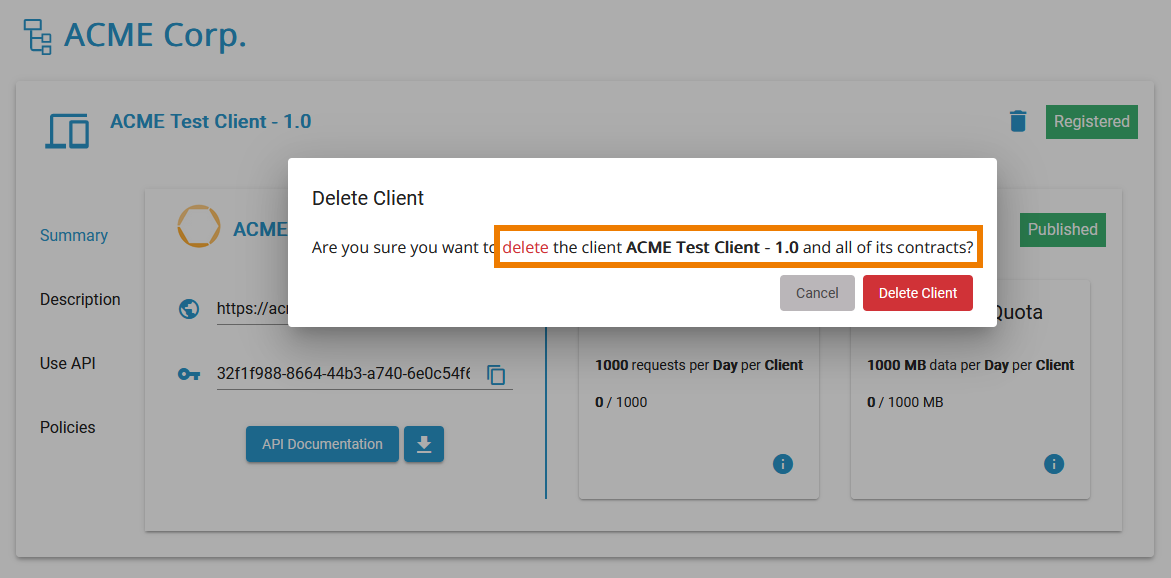
Deleting a contract will erase the contract from the client. The client will no longer be able to consume the linked API. A user has several options to delete a contract:
Deleting a Contract from the API's Details
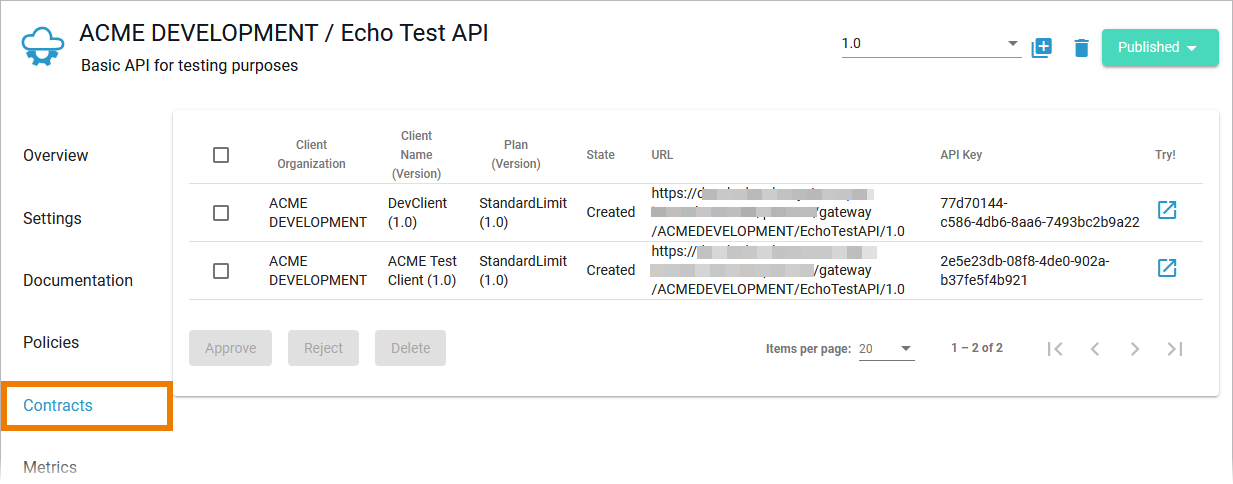
Open tab Contracts on the API's details page:
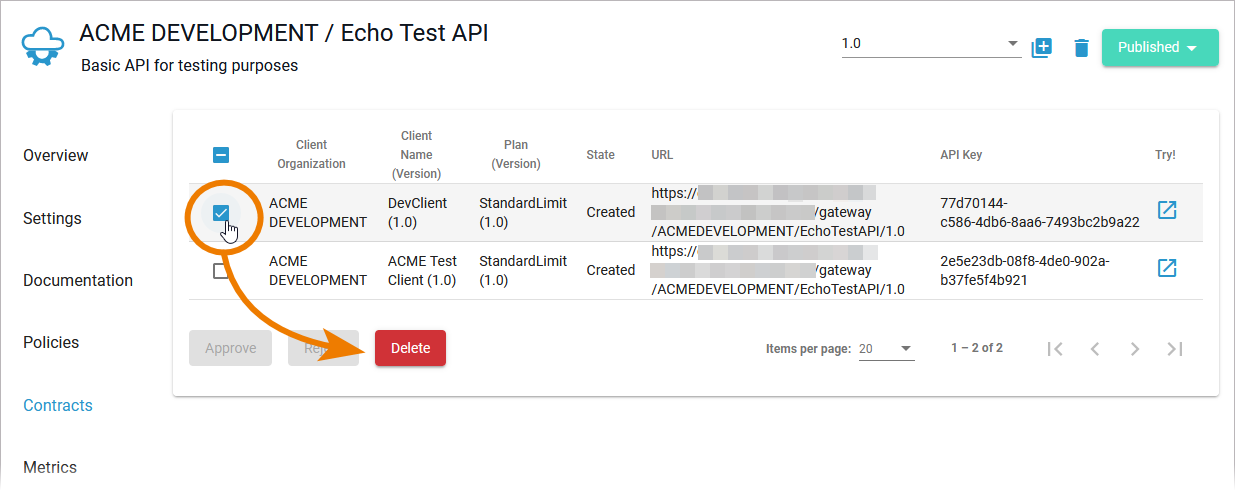
Select the desired contract and click Delete:
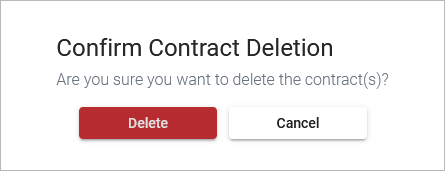
You need to confirm the action in a separate pop-up window:
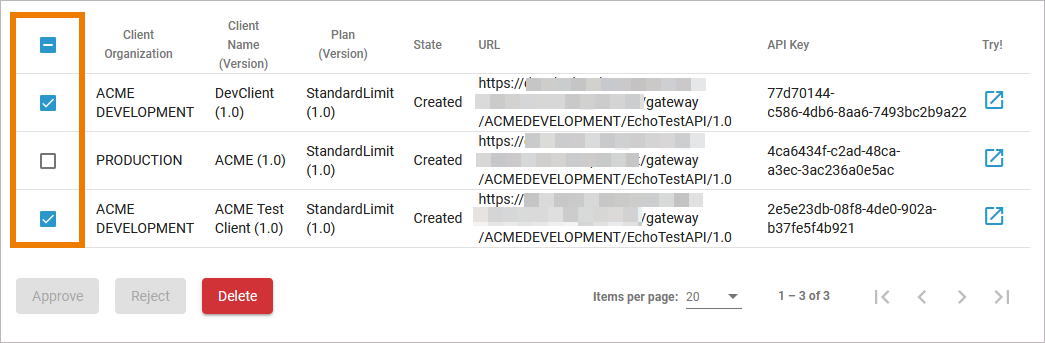
It is possible to select multiple contracts and delete them all at once:
A toast message indicates successful deletion:

Deleting a Contract from the Client's Details
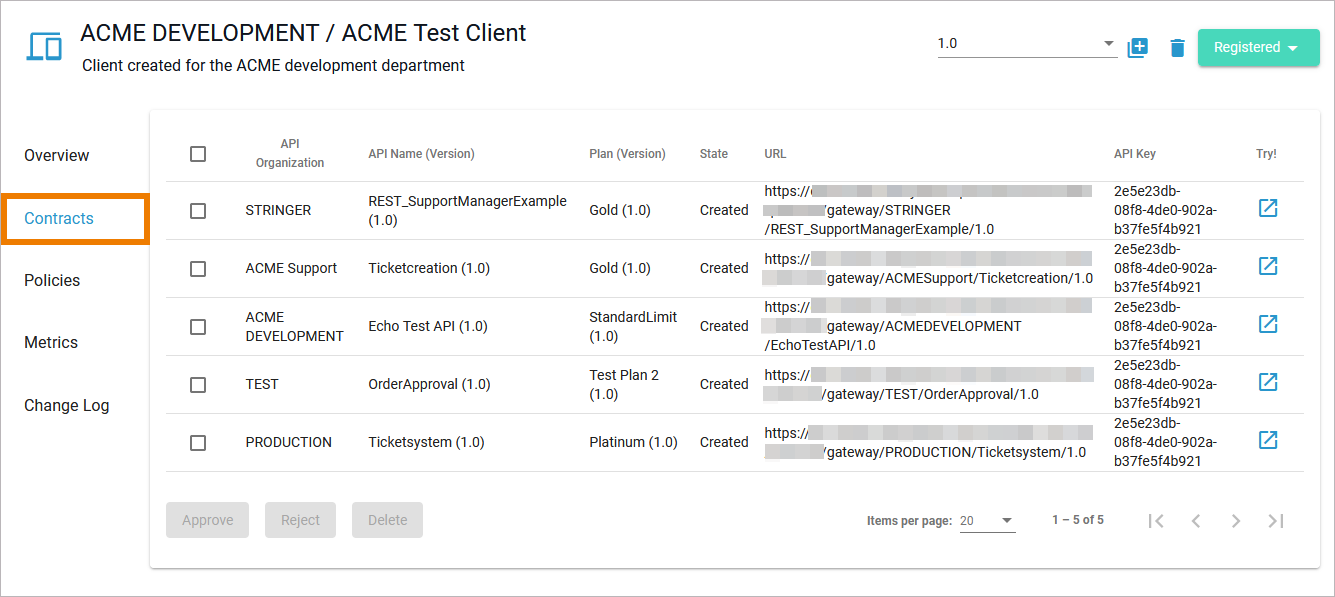
Open tab Contracts on the client's details page:
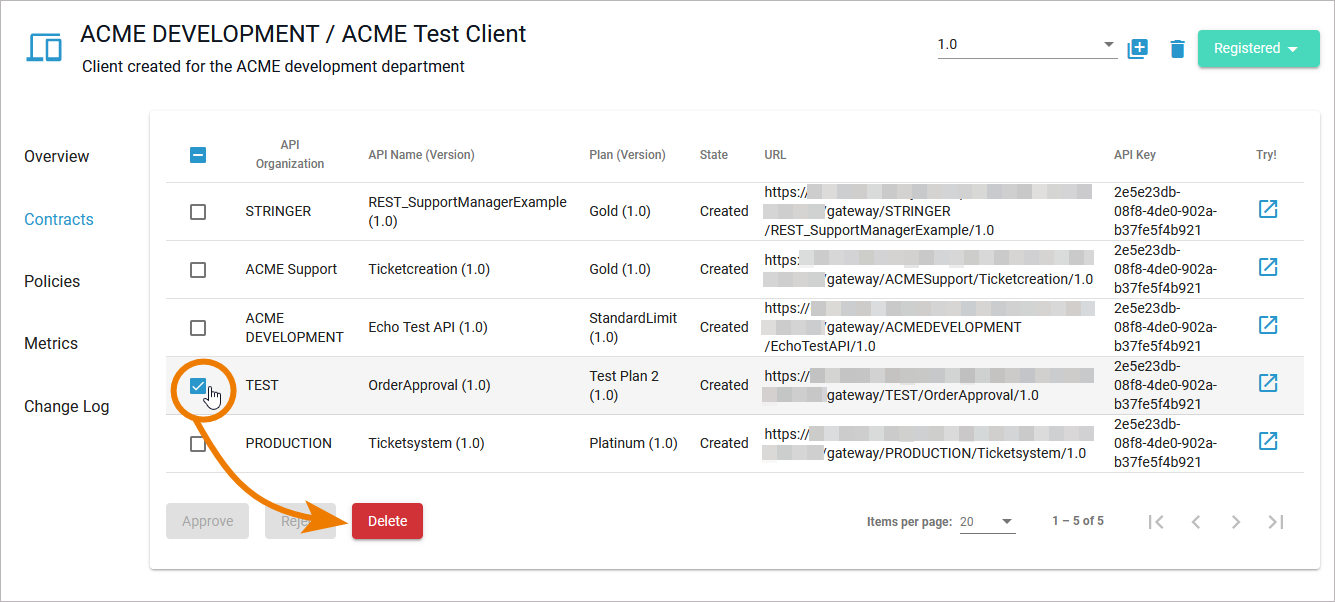
Select the desired contract and click Delete:
You need to confirm the action in a separate pop-up window:
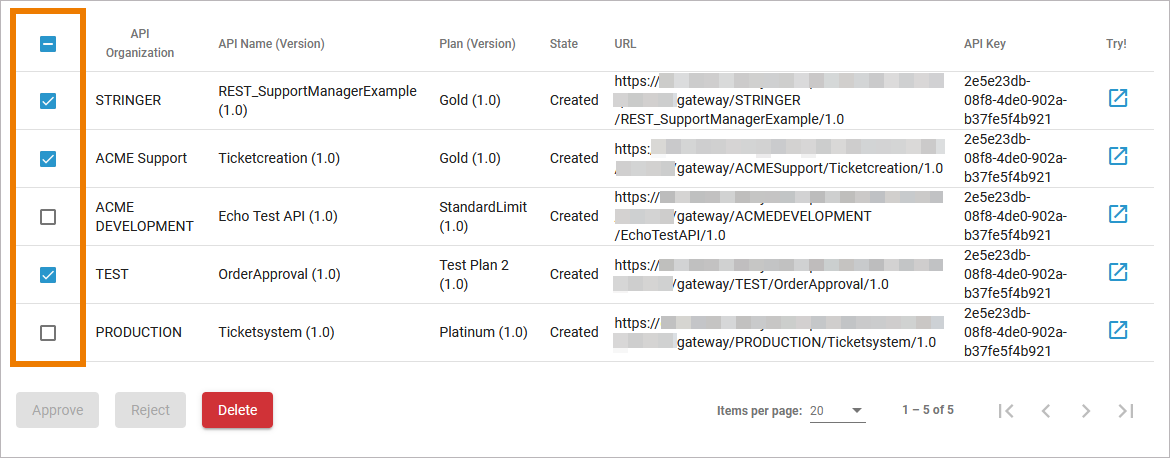
It is possible to select multiple contracts and delete them all at once:
A toast message indicates successful deletion:

Deleting a Contract within the API Developer Portal
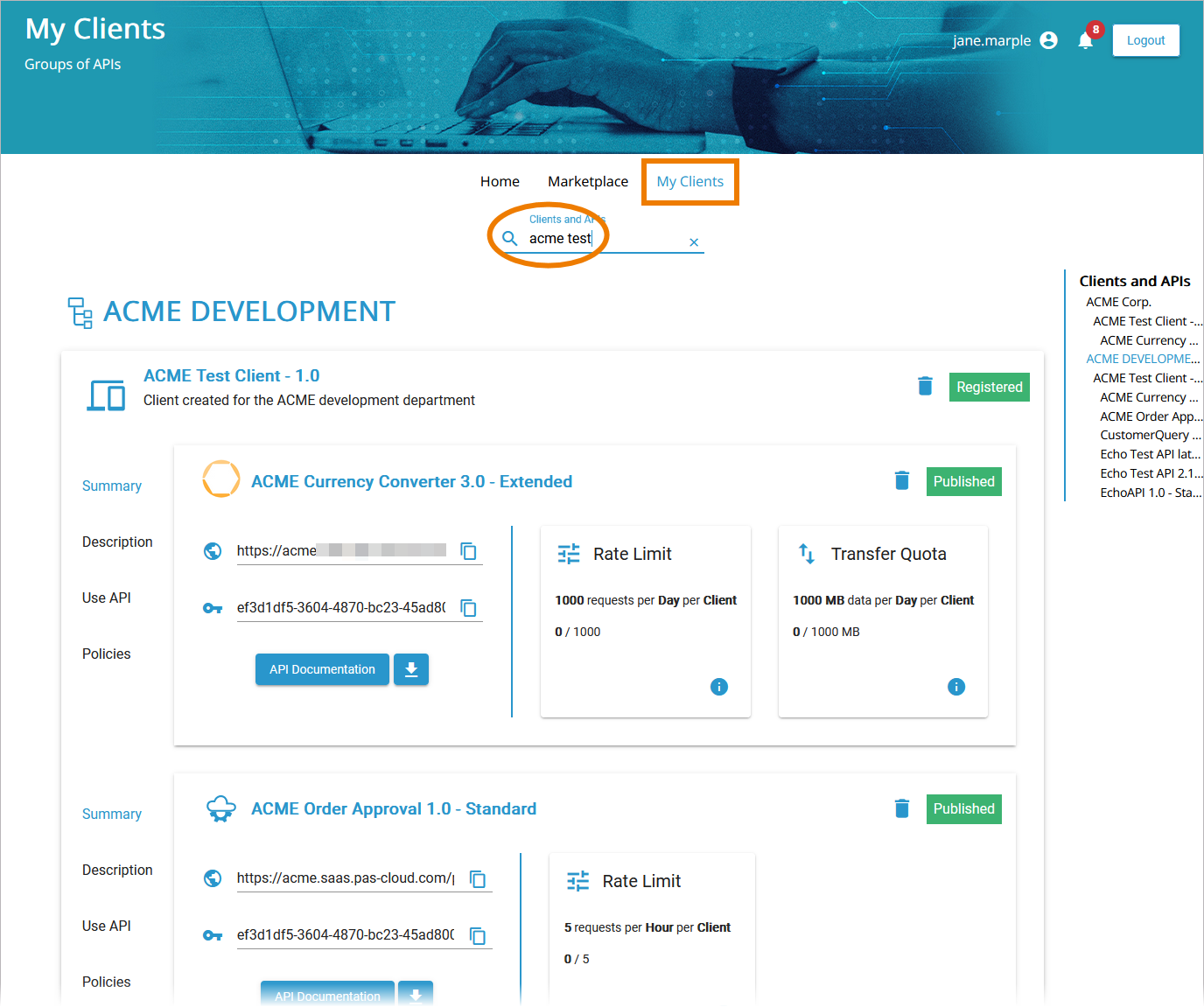
Open the Developer Portal, go to tab My Clients and search for the client or the API the contract has been created for:
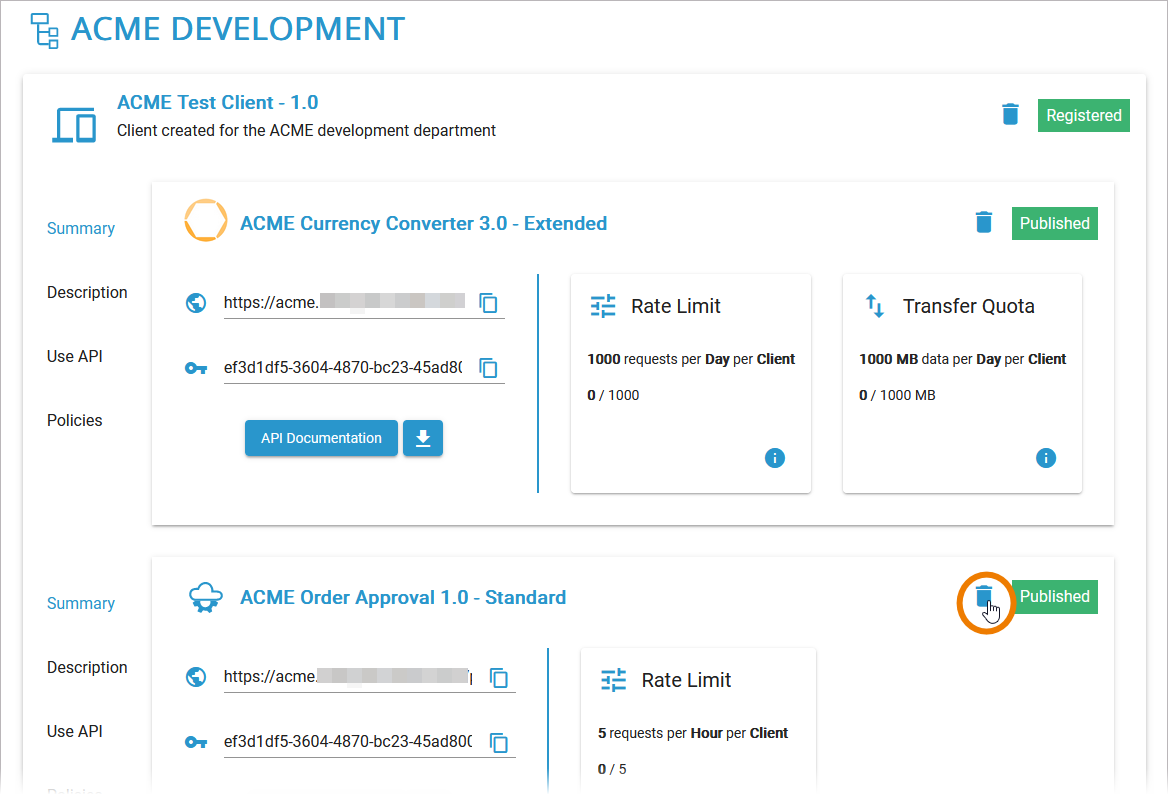
Click Delete on the contract you want to remove:
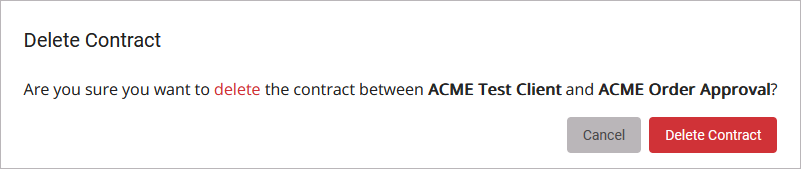
You need to confirm the action in a separate pop-up window:
A toast message indicates successful deletion:

If a client contains only one contract, only one Delete option is displayed. If you use it, the contract and the client are removed.