
The first menu in the sidebar of the Process Mining view is the Processes menu. A process list is displayed in the content area. The list shows all processes of your system that provide data to Process Mining:
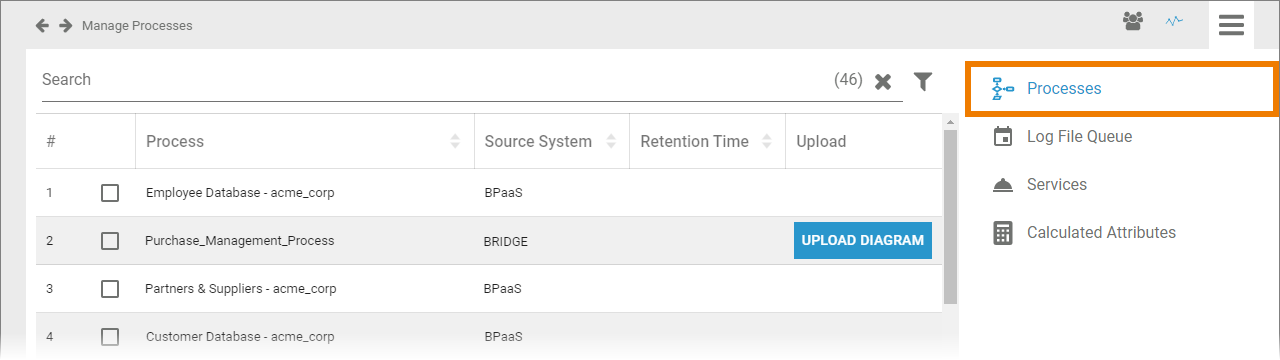
For processes whose data is supplied from the Bridge, you can subsequently upload a suitable process diagram.
The process list contains the following information:
|
Column Name |
Description |
|---|---|
|
Process |
Name of the process in your system. |
|
Source System |
Name of the PAS component providing the data (BPaaS or Bridge). |
|
Retention Time |
Retention time set for the instances of this process.
|
|
Upload |
The Upload Diagram button allows you to add a BPMN diagram to Bridge processes.
|
Use the Filter to limit the content of the list.
Adding a Diagram to a Bridge Process
You can subsequently add a BPMN diagram to a Bridge process. Select the process in the list and click the Upload Diagram button. Choose the file you want to add and confirm:
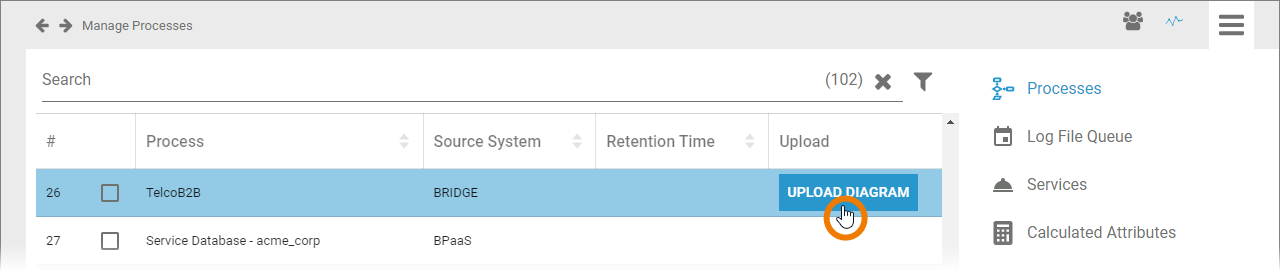
The supported format is .svg.
To show the diagram, open the Process Mining component:
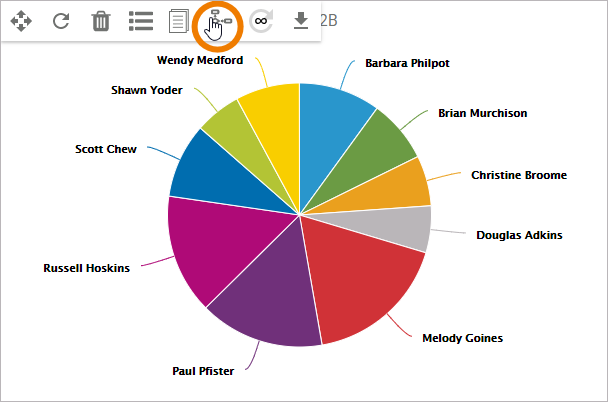
Go to an analysis that uses the process and select option Show process overview in the the analysis menu:
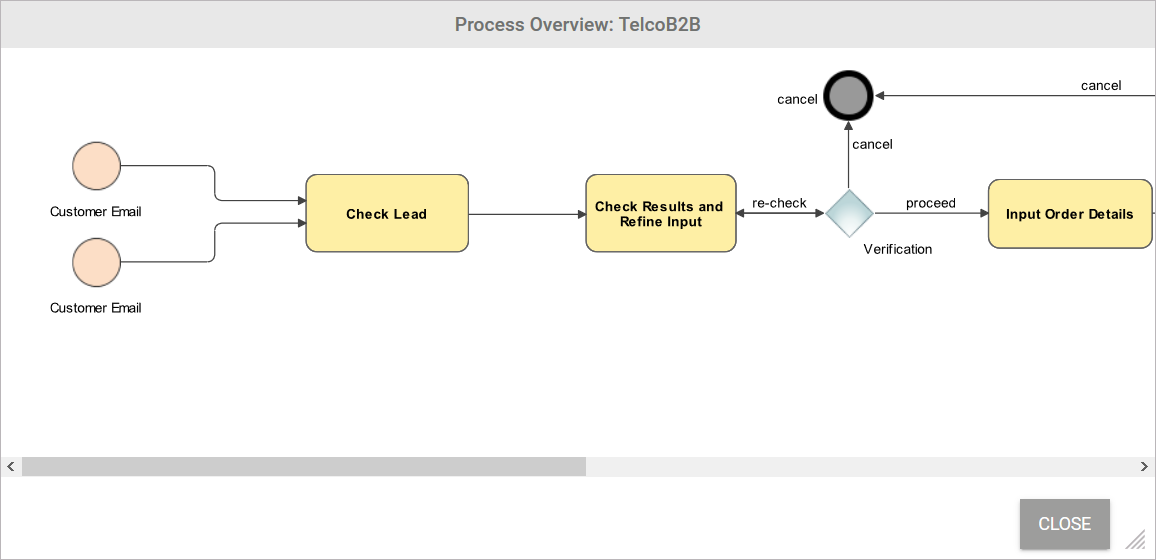
The uploaded BPMN diagram will then be displayed:
Related Content
Related Documentation: