
Creating a Test Suite to Import the Test Cases to
Switch to the Regression Tests tab. First of all, you need to create a test suite to store your regression tests in.
Adding test cases directly to the root test suite is not possible. You need to create subordinate test suites to organize the test cases in.
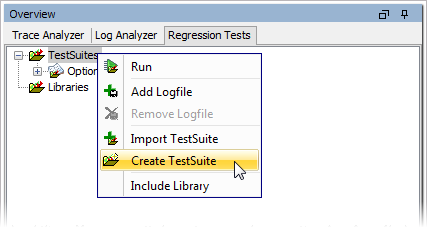
Click the root test suite and Create Test Suite from the context menu:
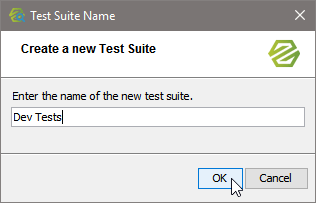
Enter a meaningful name, e.g. Dev Tests:
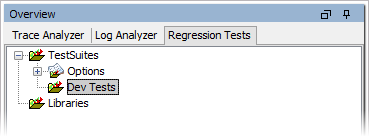
The new test suite is displayed in the Regression Test navigation tree:
Importing the Test Cases from the Trace Analyzer
Into this newly created test suite you can now import all test cases defined in the first step.
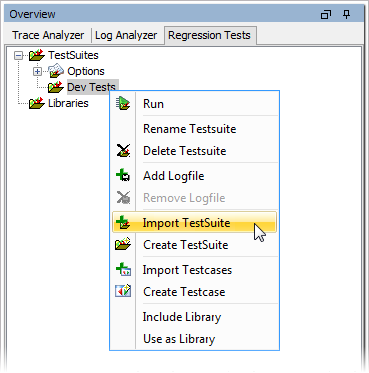
Click the new test suite and select Import Test Suite from the context menu.
-
By selecting Import Test Cases you can import single test cases.
-
Using Import Test Suite you can import a set of test cases.
Select the test suite you want the import to be inserted to:
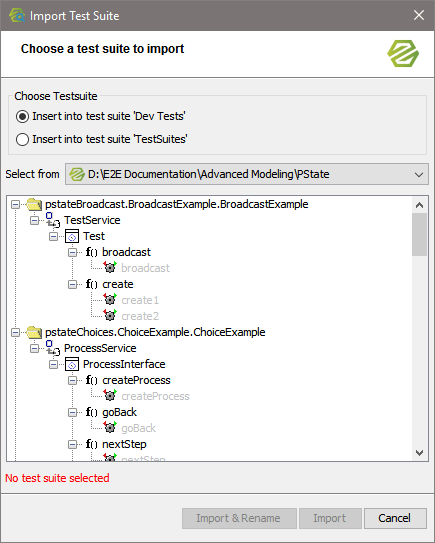
In the lower part you'll find a list of WSDLs from the Trace Analyzer containing all WSDLs from the PState project. Browse through this list and look for the PurchaseOrder example.
With Select All you could also select all SOAP operations to be imported as test suites into the Regression Test tool. Use Select None to undo any selection.
Test cases that have never been run are greyed out. They can not be imported as they contain no reference data.
Test cases that already have been imported are displayed in orange to show that there is a conflict.
Even erroneous test cases can be imported and can be used for regression testing (for an example see Adding an Additional Test Case).
To import test cases from other Builder projects use the Select from drop-down box. Select PurchaseOrderPort as the tree node containing all test cases you prepared in step one, and click OK:
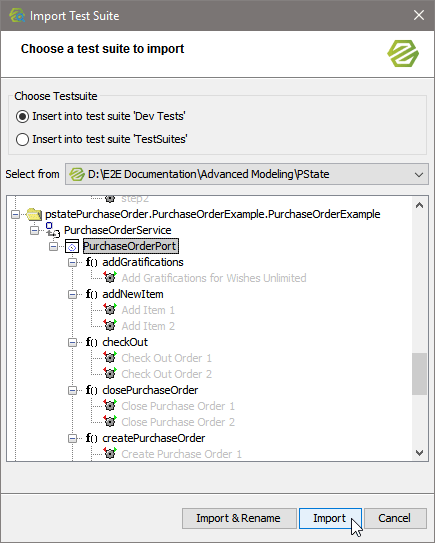
The PurchaseOrderPort test cases got imported into test suite Dev Tests. The importer created subordinated test suites for each SOAP operation:
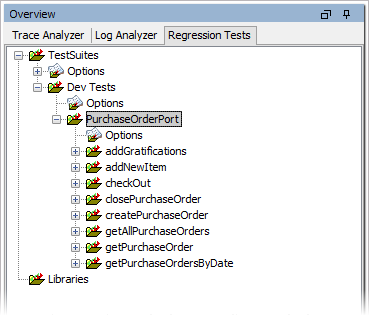
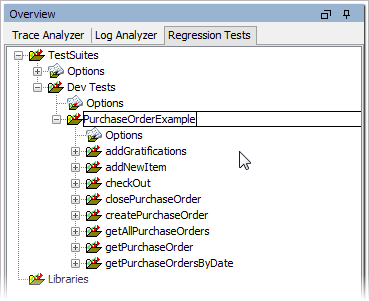
Rename the imported test suite to PurchaseOrderExample (which is more meaningful) by pressing F2 or selecting Rename Test Suite from the context menu:
Sorting the Test Cases
Now remember, that the order of execution of the test cases is important. If you want to automate the execution of PurchaseOrderExample, you'll have to move the test cases to the correct order.
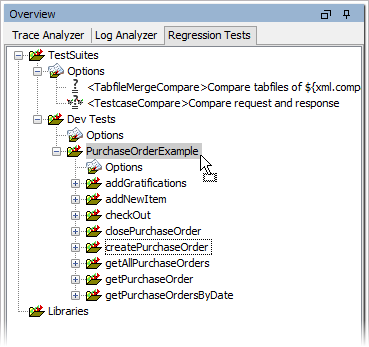
createPurchaseOrder should be the first SOAP operation to be tested. Click createPurchaseOrder and drag it to the PurchaseOrderExample folder:
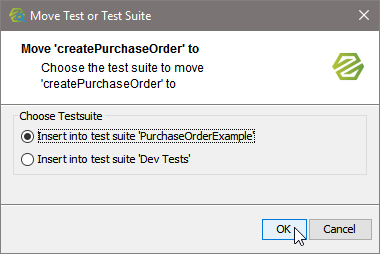
Confirm that you want to insert the test cases into PurchaseOrderExample:
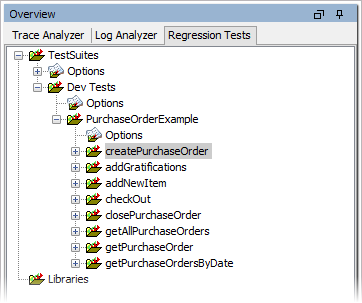
The SOAP operation and its test cases got inserted on top:
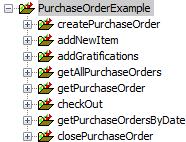
Rearrange all SOAP operations according to the picture below:
Expand tree node createPurchaseOrder and delete the test Create Purchase Order 3 (if existent). This test will create a persistent state object, that only will be removed after a timeout and that will be breaking the regression tests.