
There are use cases where you might want to parse a flat file into an XML document for further processing. The example below shows such an implementation.
FlatFileAdapter_ConvertToXML_Example
Click here to download a simple example model that shows how to use the Flat File adapter to parse a flat file into an XML document in Scheer PAS Designer.
In this example, the given flat file contains a product list that looks like the following:
line;category;name;number;price;serviceInterval;type
1;Adapter;AF-1200;00001;64.5;52;micro
2;Adapter;AF-1300;00002;67.5;52;micro
In a first step, you need to parse the flat file blob into a data structure that reflects the structure of the flat file.
Refer to Flat File Adapter for more information on the general flat file approach and it’s limitations.
Flat File Definition
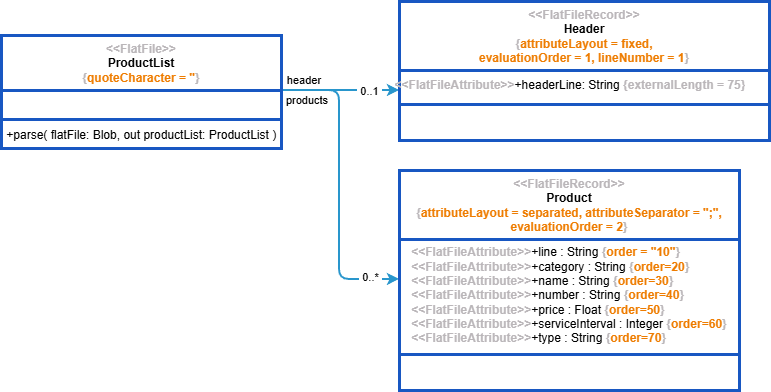
The class diagram below shows the needed structure to parse the flat file into:
-
Flat File
-
ProductList, extension Flat File
-
The flat file uses quoting (quoteCharacter = “) to escape special characters in field values. This makes the serialization more robust in case the field separator is used in a flat file field value. A robust quoting prevents parsing errors.
-
If you want to use the quote character inside a field value, it needs to be inserted two times like “".
-
Flat File Header
-
Header, extension Flat File Record
-
The flat file Header has only one field with a fixed width (attributeLayout = fixed). We do not really need the contents of the header as the flat file parser does not use this line to understand the names or order of the columns.
-
By specifying lineNumber = 1, the first record is processed into class Header.
-
evaluationOrder = 1 defines the header as to be parsed first.
-
-
Flat File Line
-
Product, extension Flat File Record
-
The sample flat file product list has a series of properties that are separated by a semicolon. The attribute layout is “separated” (attributeLayout = separated) and the separator is the
;sign (attributeSeparator = “;”). -
evaluationOrder = 2 defines the products as to be parsed secondly - after the header row.
-
The order of the properties is defined by the order attribute.
-
Use increments of 10 to define the order within a flat file. This way, you will be able to easily insert fields in between if necessary, e.g. if the a change to the flat file requires a refactoring.
Refer to Defining a Flat File Data Structure in the Designer guide for an overview on all possible flat file options.
Parsing the Flat File
After having defined the structure of the flat file, you can use the Flat File adapter to parse a flat file into this structure.
Drag the parse operation to your diagram as described on Flat File Adapter. You have two options to provide the flat file:
-
As a blob in parameter data. This is how it is done in the example service.
-
Specify a path to a file in the filesystem, dynamically via input parameter name, or statically via the definitions of a File alias. The parser then will read the file and parse it.
Refer to Parsing Flat Files in the Designer documentation for more details about configuration options, parameters and the parsing process.
Troubleshooting
|
Problem / Error Message |
Possible Reason |
Solution |
|---|---|---|
|
Parsing errors. |
The fields of the flat file cannot be identified. |
Check if the attribute layout and separator are defined correctly (see Flat File Definition for more). |
|
The flat file contains special characters that need to be escaped. |
Check the defined quoting/escaping settings (see Flat File Definition for more). |
|
|
Reason needs to be investigated. |
Refer to Parsing Flat Files > Inspecting the Parsing Process With the Scheer PAS Analyzer for a detailed description of the investigation possibilities. |
Related Content
Related Pages:
Related Documentation: