
Installing the SQL Client Tools for MySQL
For MySQL, install the required MySQL client tools and define all necessary configuration parameter as described in the MySQL installation guide.
Note the following hints:
-
On the MySQL pages you will find a tutorial, that helps you with making first steps with MySQL.
-
Add the MySQL lib directory to the PATH variable before starting MagicDraw. Otherwise this variable won't be visible for the embedded xUML RUNTIME.
Defining the MySQL Database Preferences on the Bridge
In a browser, open the Web-based user interface of the system, on which the Bridge is installed (see Checking the Installation). Enter a user id and password of a user with administration rights (the pre-defined user admin, for instance).
The welcome page is displayed.
In the Navigation, select the xUML Services item of the node instance you want to define the database preferences for and switch to tab Preferences:
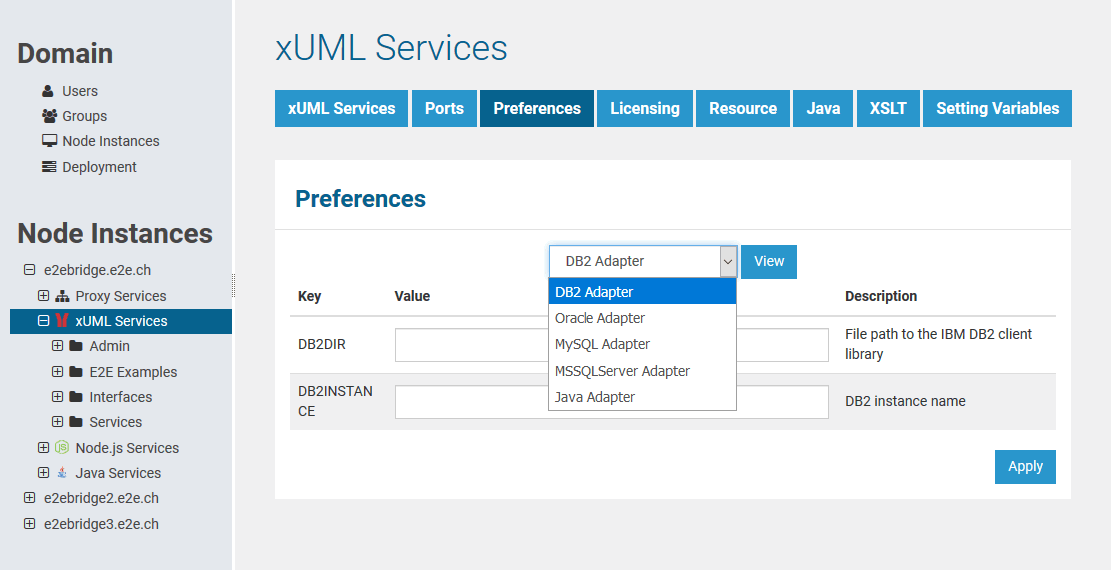
Now, you can define the SQL adapter preferences for each database type. Select the DB2, Oracle, MySQL, or MSSQLServer Adapter in the drop down box and the parameters of the selected adapter are displayed.
Select the MySQL Adapter, enter the following parameter and click Apply.
|
Key |
Value |
|---|---|
|
MYSQLLIB |
File path of the client library, e.g. C:\Program Files\mysql-connector-c-6.1.0-winx64\lib\libmySQL.dll. Linux: e.g. /usr/lib/libmysqlclient.so.xx |
You do not have to set this parameter, if the path is already defined in the system environment.
Setting the Operating System PATH for DLL Files
As of MySQL 8.0.x, the client DLL has runtime dependencies that must be available from the Bridge. There are two ways to achieve this:
-
You can add the folder the DLLs are residing, directly to the
PATHvariable of your Windows DB server operating system. -
You can add a start script to your Bridge installation that sets the path for all services.
|
Method |
Description |
|---|---|
|
Change the Windows path |
|
|
Add a start script to the Bridge |
|