
After the Analyzer has been installed (see Analyzer Installation Guide for more), you can open it by using the shortcut on the desktop or from the Start menu (Windows) or by running the start script (Linux):
The Analyzer window opens as shown in the image below:
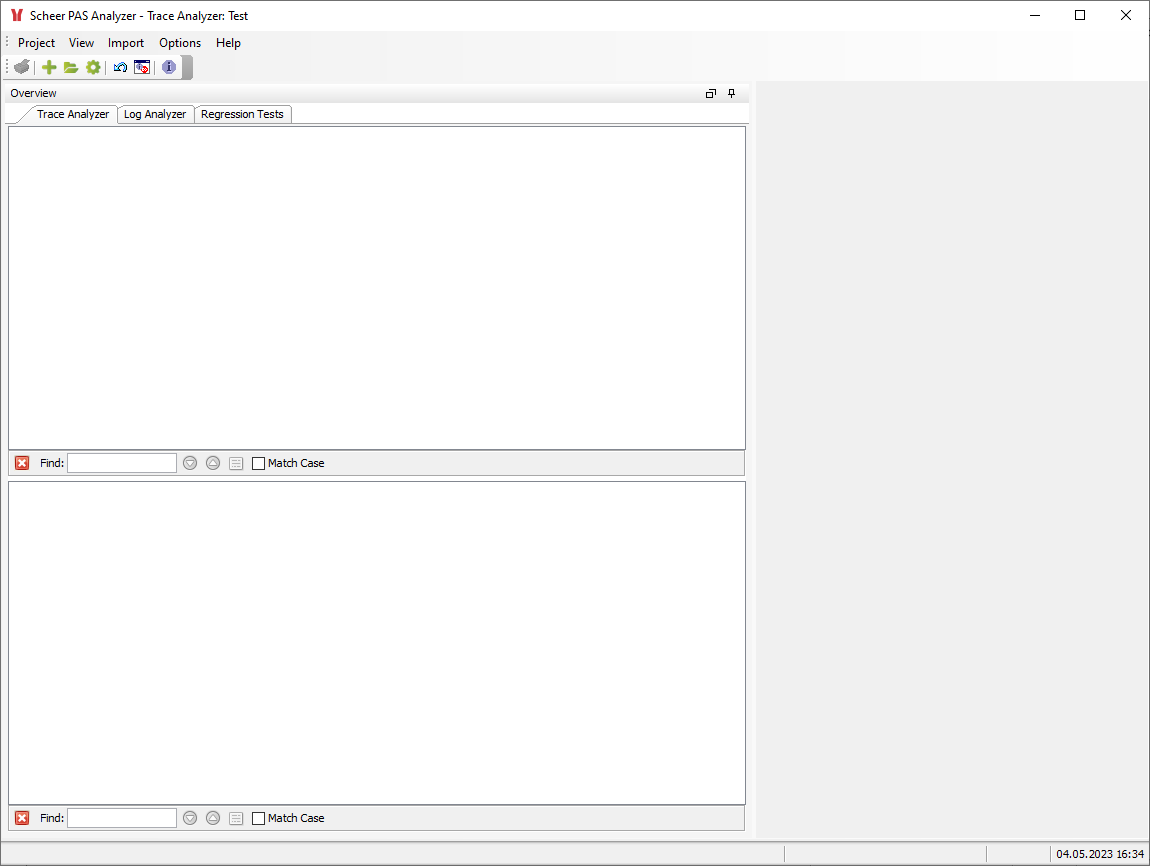
The Analyzer Window
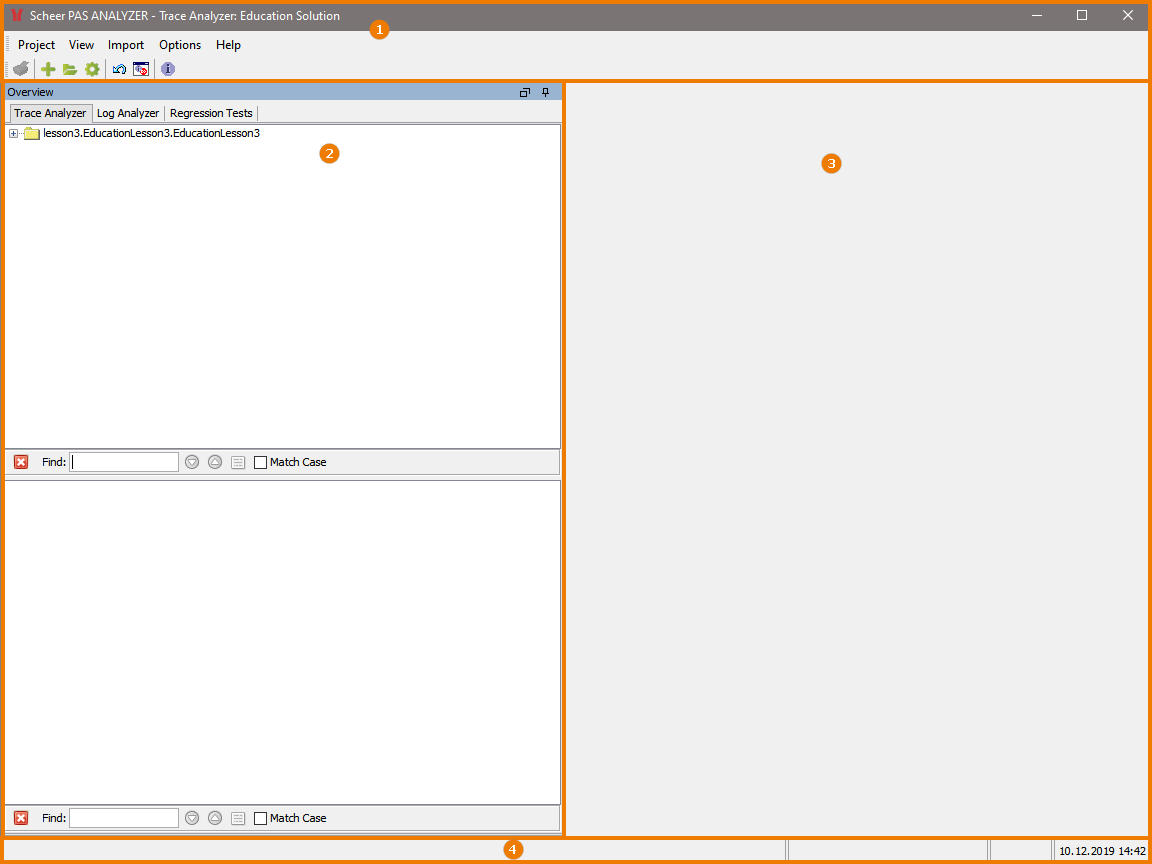
The Analyzer window is divided into the following parts:
-
The header, which comprises the main menu and the main toolbar.
-
The Overview window, which contains the Trace Analyzer, Log Analyzer, and Regression Test Tool.
-
The content pane, which displays content depending on the selection made in the overview window.
-
The status bar at the bottom of the window.
Header

The header shows
-
the product name (Scheer PAS Analyzer), followed by
-
the selected tool (Trace Analyzer ) and
-
the opened project (Education Solution) if any.
Refer to Overview of the Analyzer Menus for more information on the main menu and the main toolbar.
Overview Window
The overview window contains three tabs:
Trace Analyzer
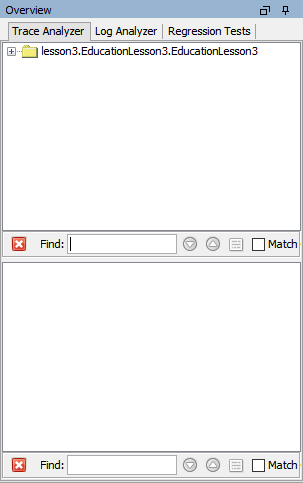
The Trace Analyzer tab is divided into two parts: the upper area for synchronous testing and the lower area for asynchronous testing.
Log Analyzer
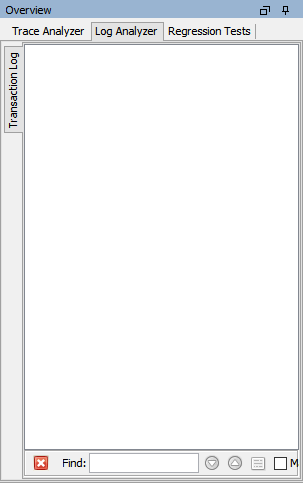
The Log Analyzer tab displays imported transaction logs which the user can trace through.
Regression Test Tool
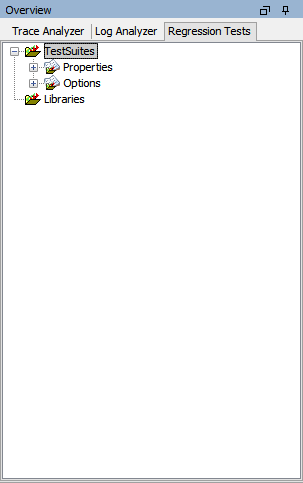
The Regression Tests tab displays defined regression tests in a tree structure.
Content Pane
The content pane displays content depending on the tool selected in the overview window.
Status Bar
The status bar displays messages and errors related to the user's activities.
Related Content
Related Documentation: