
Make sure that you have administration rights and run AnalyzerInstaller_7.x.x.exe to start the installation of the Analyzer. You may get a Windows security warning that you will have to confirm.
Click Yes to install the Analyzer:

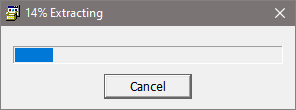
The Analyzer Installer is being extracted and started:
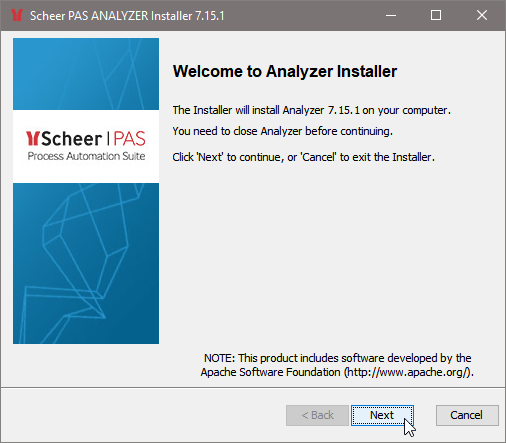
After a few seconds, the installer window opens. Follow the instructions during the installation process. Click Next:
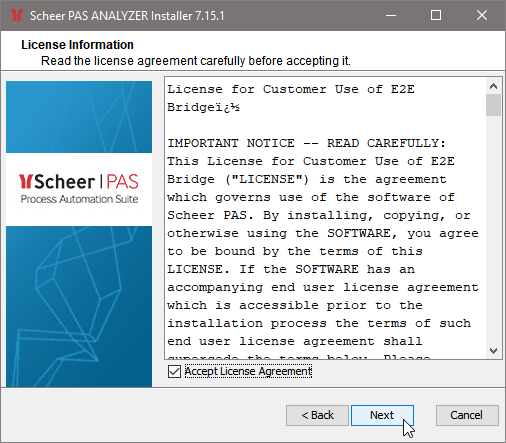
Please read the license agreement carefully and accept it. Click Next:
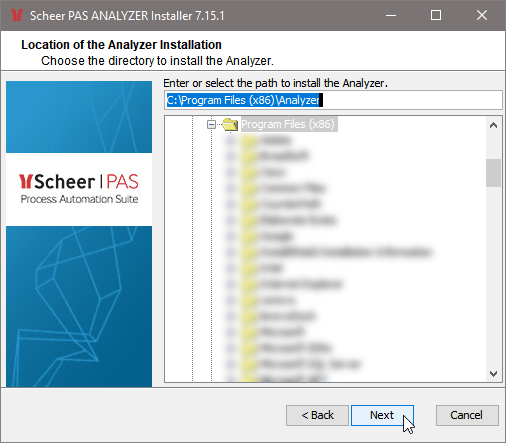
Navigate to the folder where the Analyzer should be installed, and select it. The default installation location is C:\Program Files (x86)\Analyzer. Click Next.
Select this option if you want to create a programs menu shortcut to the Analyzer. Click Next:
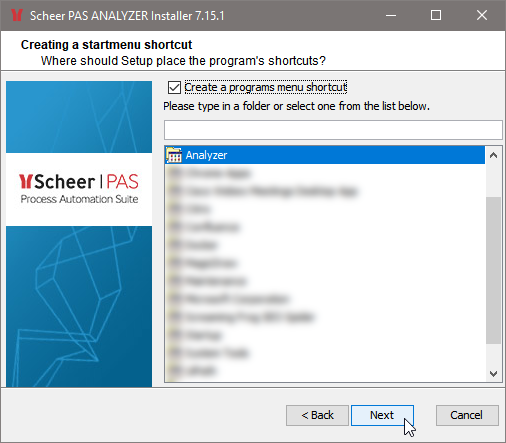
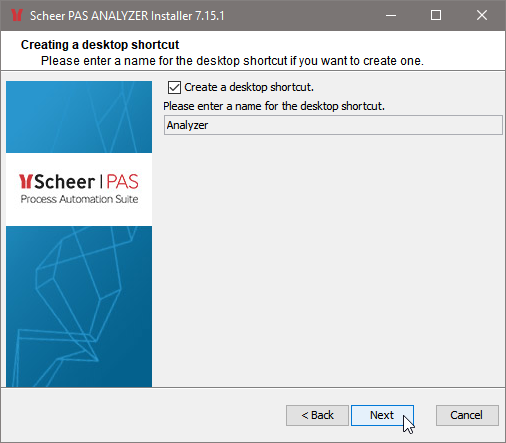
Select this option if you want to create a desktop shortcut to the Analyzer. Click Next.
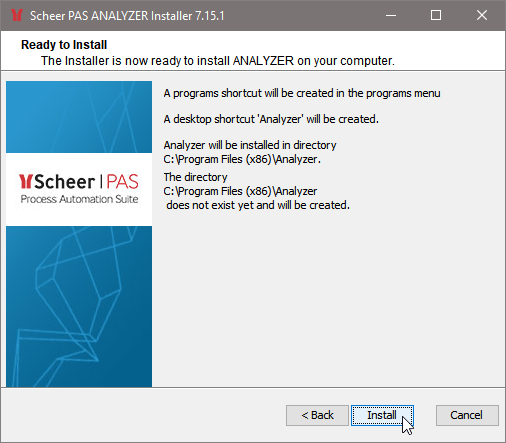
This window shows a summary of the installation options. If you wish to change them, click Back. Otherwise, click Install to start the installation:
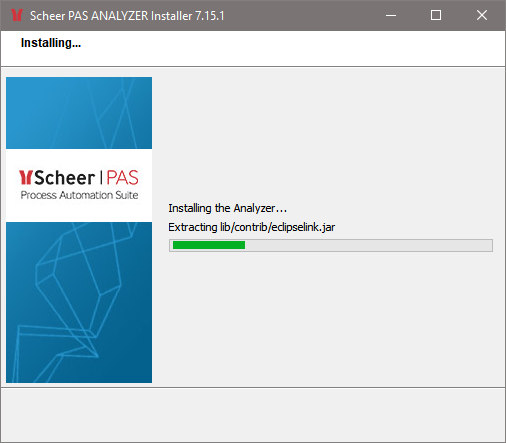
The Analyzer is being installed:
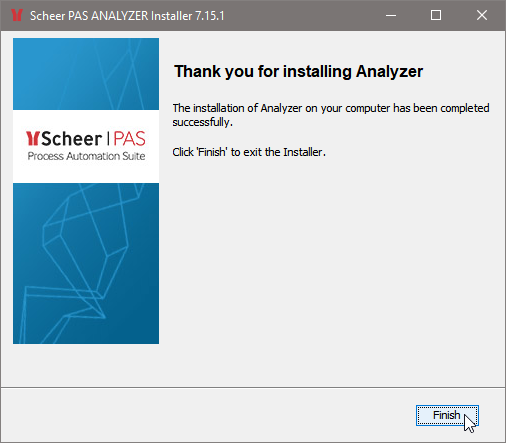
The Analyzer installation has been finished. Click Finish:
To start the Analyzer, double-click the Analyzer icon on your desktop or select Analyzer from Windows Start menu.