
After a successful login to your Scheer PAS system, you will find yourself in the Portal.
The Portal is your access to the world of Scheer PAS: For each component of the platform you are authorized to use, you will see a corresponding tile. The current version of the portal is displayed in the lower right corner:
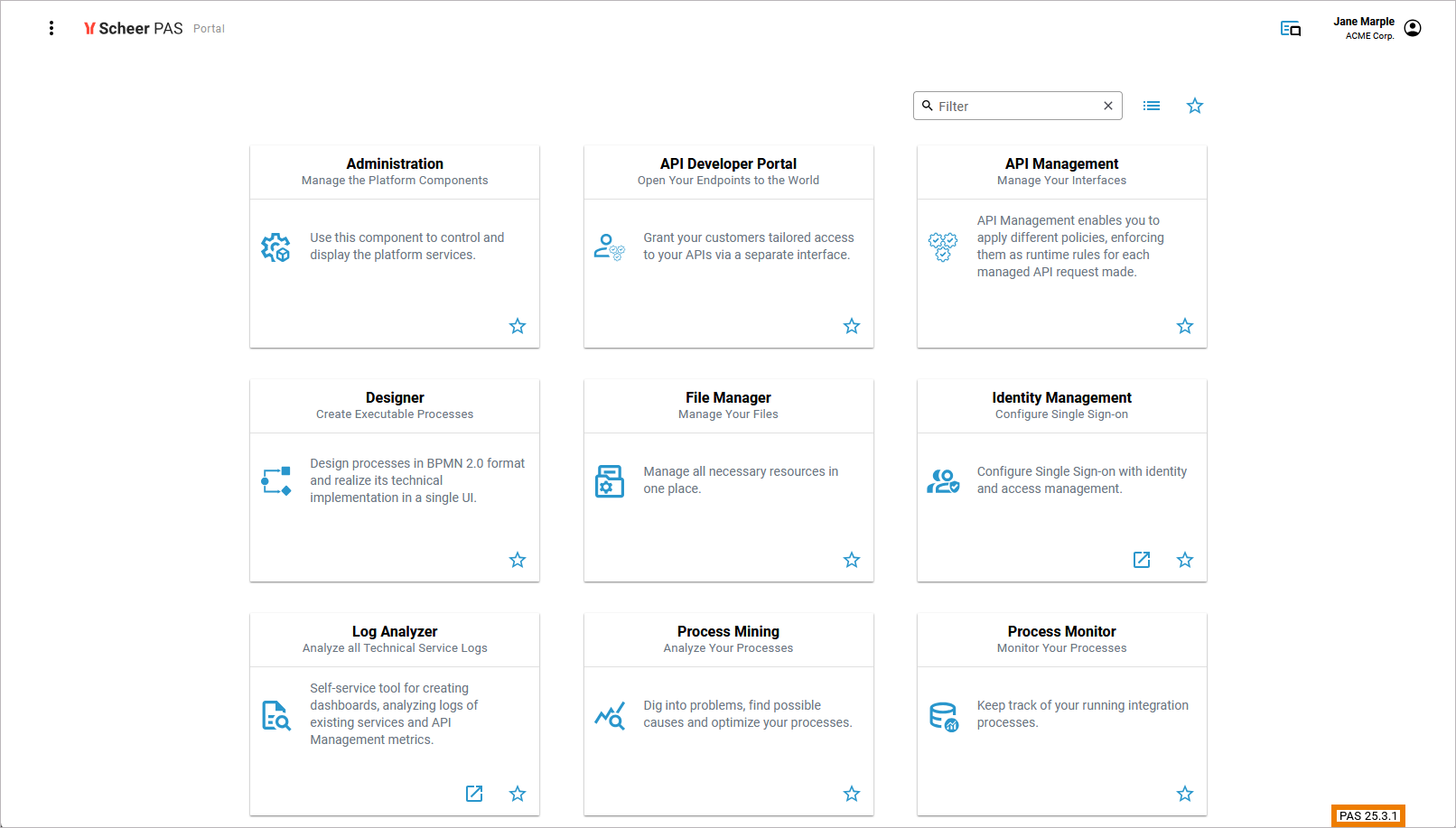
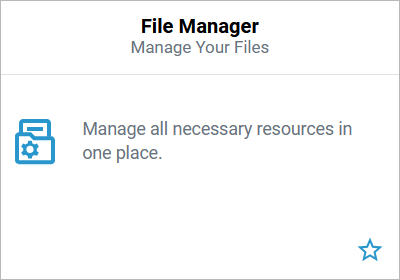
Click on a tile to open the corresponding component:
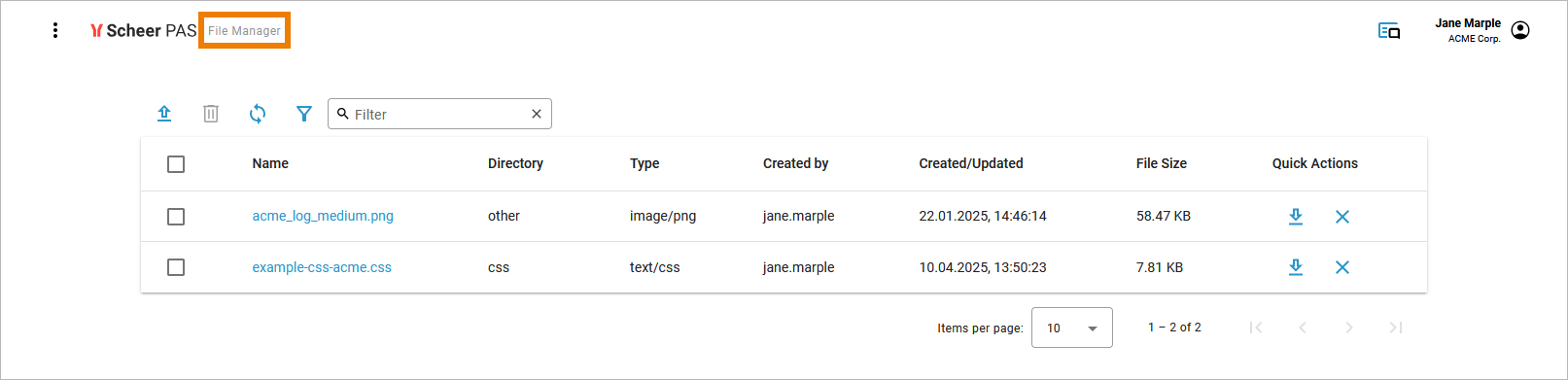
The component will open within the portal:
Use the portal menu to navigate to any other component:
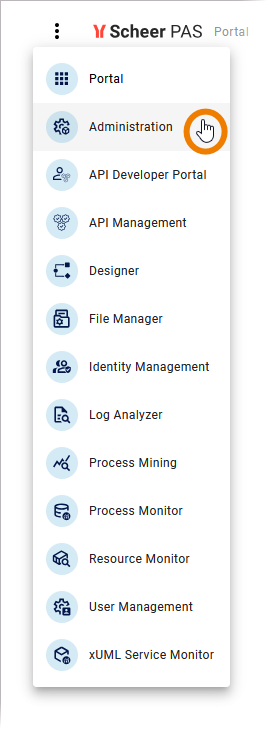
Click Portal to return to the portal page.
When you navigate via the Portal menu, the applications open within the Portal.
The following components are always opened in a new tab:
-
API Developer Portal
-
API Management
-
Business Modeler
-
Designer
-
Resource Monitor
You can also open several components in a separate browser tab. If this is possible, you can find the option Open in new browser tab on the lower right corner of the tile:
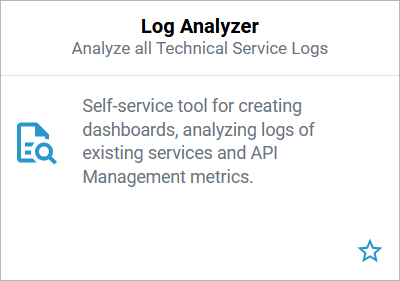
The component will then open in a new browser tab next to the Portal.
This option is available for the following components:
-
Identity Management
-
Integration (Bridge)
-
Log Analyzer
Managing the Portal View
Use the filter bar at the top of the page to manage the portal view:
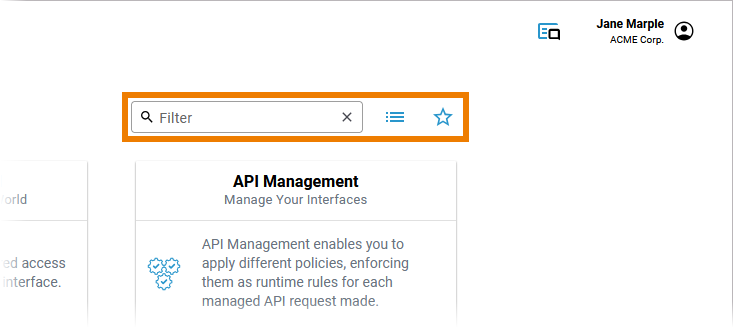
Filtering the Portal Content
Enter your search criteria in the Filter field. Only the tiles that correspond to the search term are then displayed in the Portal:
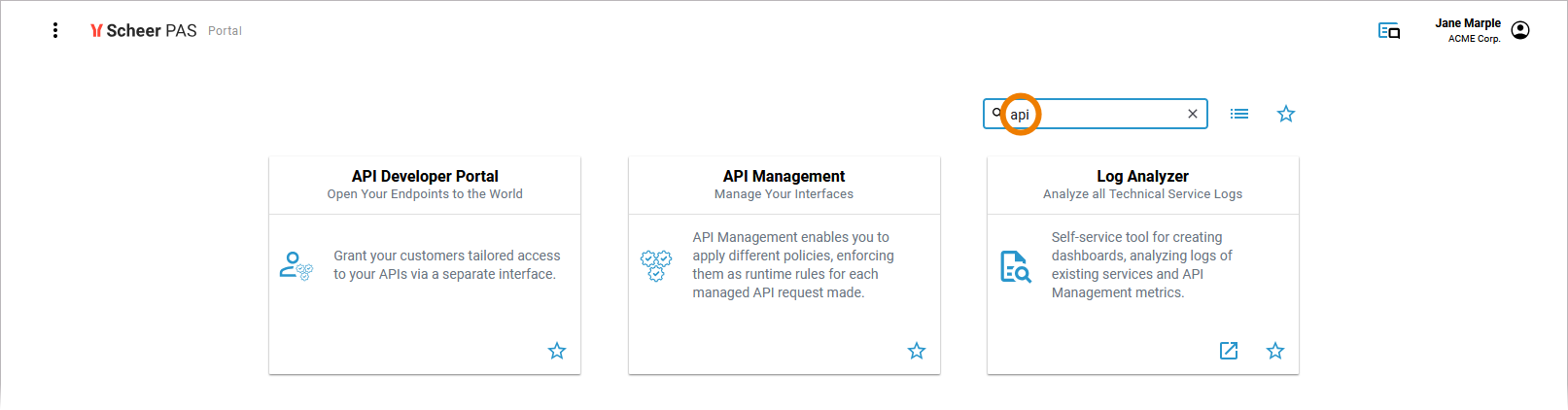
The filter refers not only to the names of the apps, but also to the text of the tiles and related terms.
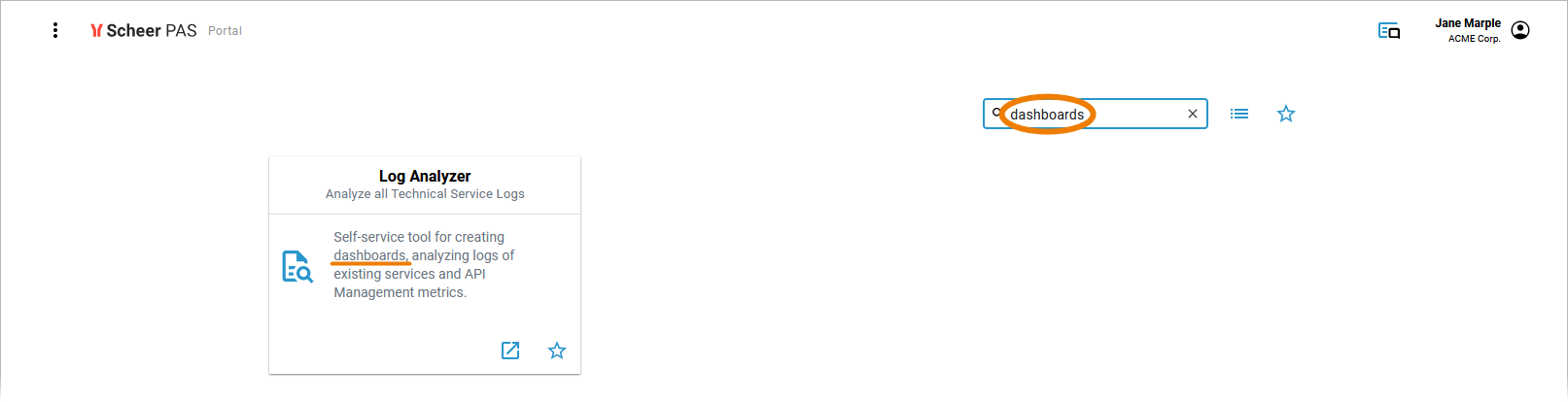
Example:
The user does not recall the name Log Analyzer but knows that he can use the tool to create logging dashboards. So he searches for dashboards - and the Log Analyzer is found:
Use Show as list …
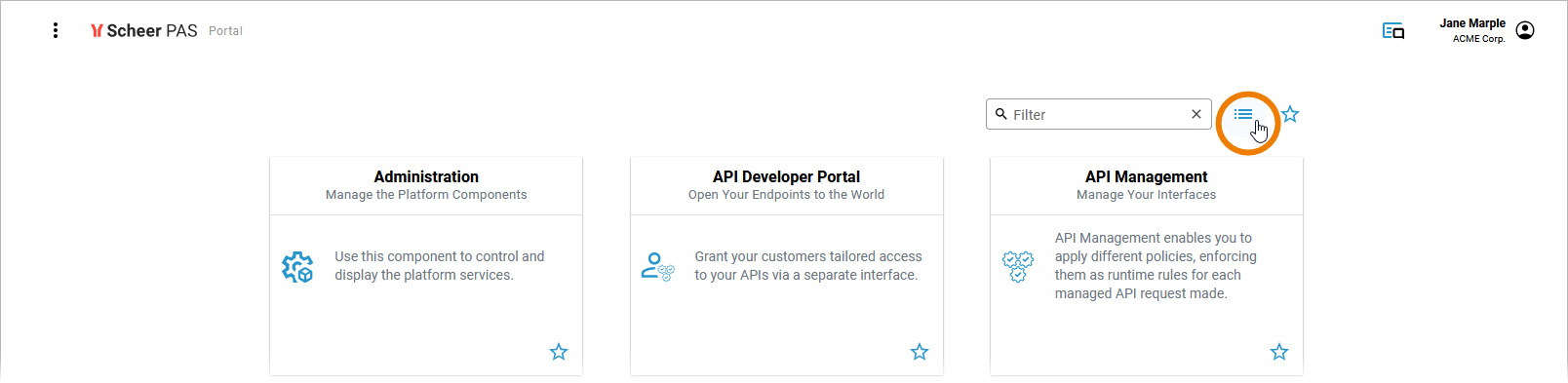
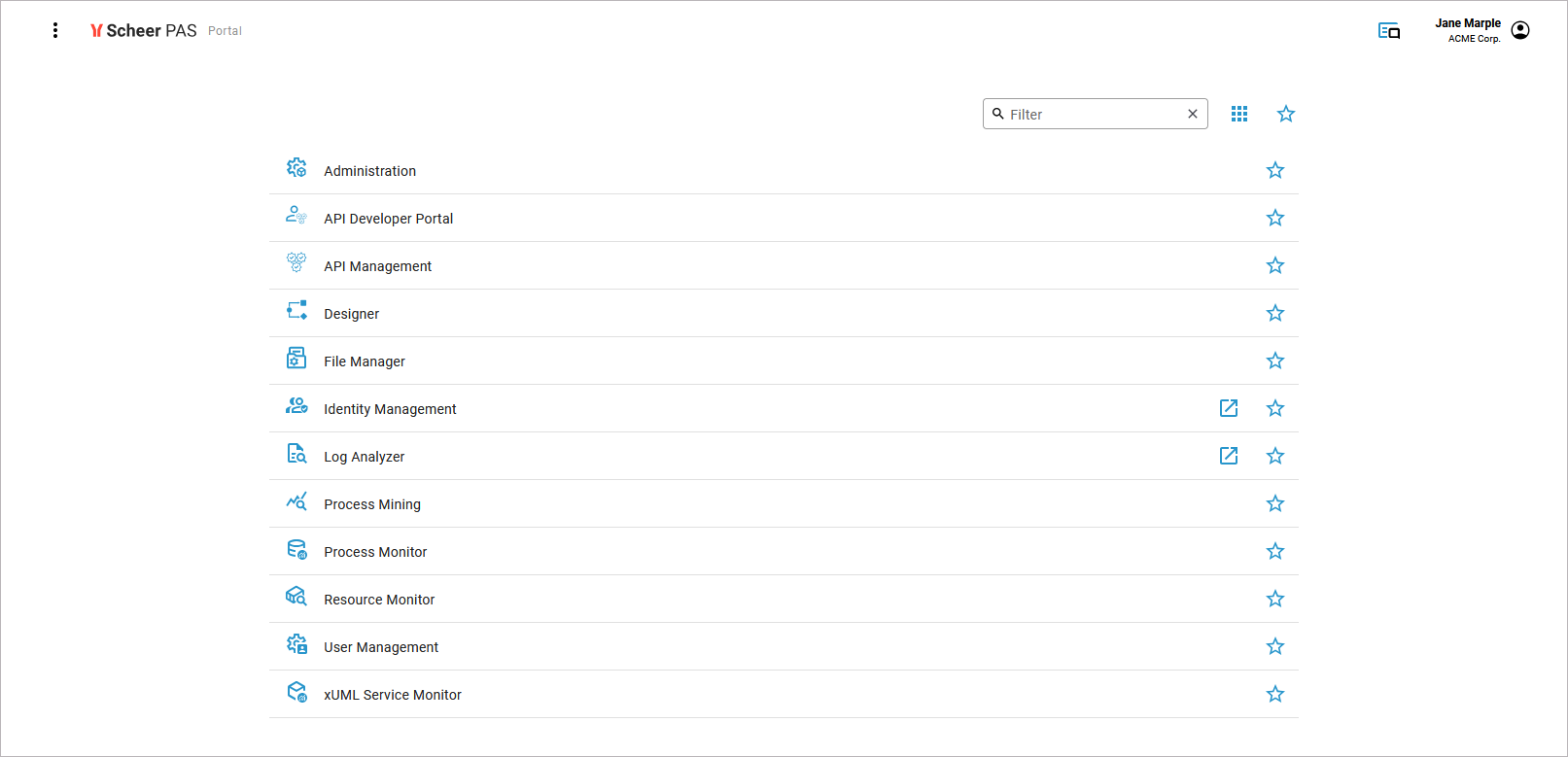
… to switch to the list view of the Portal:
|
Icon |
Description |
|---|---|

|
Use this option to switch to the tile view. |

|
Use this option to switch the list view |
Creating Favorites
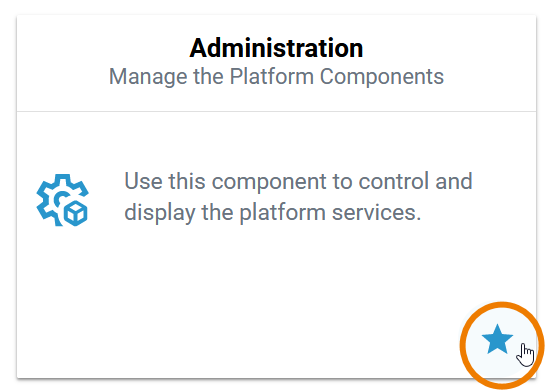
You can mark the displayed apps as favorites:
|
Icon |
Description |
|---|---|

|
Add to favorites: Click to add this component to your favorites. |

|
Favorite: This component is currently one of your favorite apps. Click to remove it from your list of favorites. |
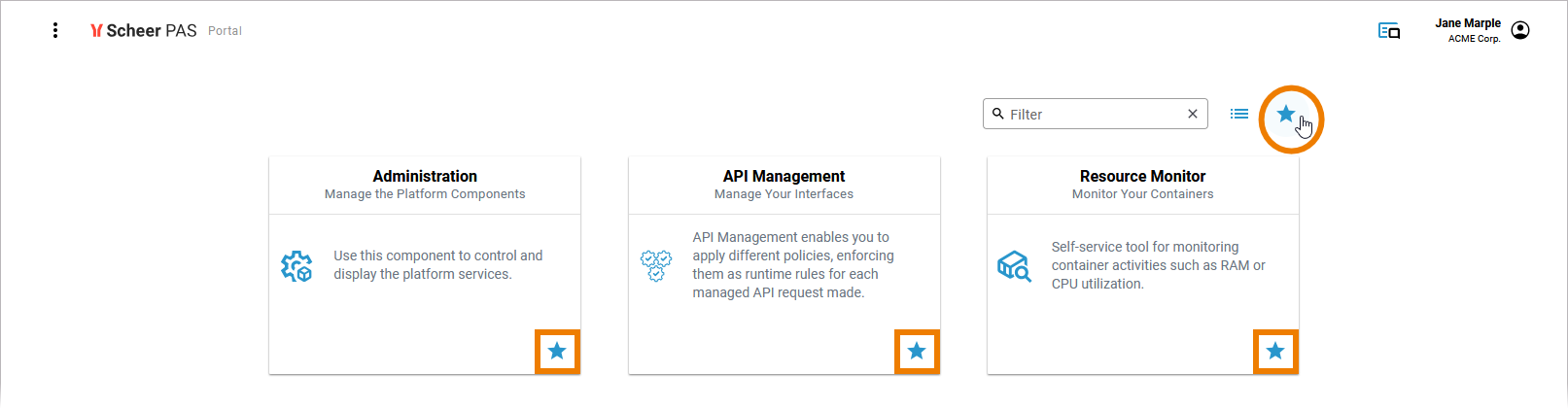
If you want to show only favorite apps on the Portal page, use option Show favorites in the filter bar:
Related Content
Related Pages: