
Starting with PAS 23.1.1, developers can share assets like libraries with all colleagues working on the same PAS system (refer to Publishing Assets for details). Other users have access to these published assets via the Asset drawer, which is directly accessible from within the service panel.
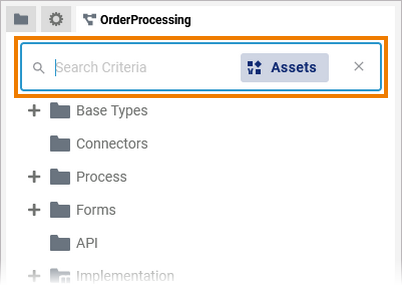
You can open or close the Asset drawer from within the search box of the service panel:

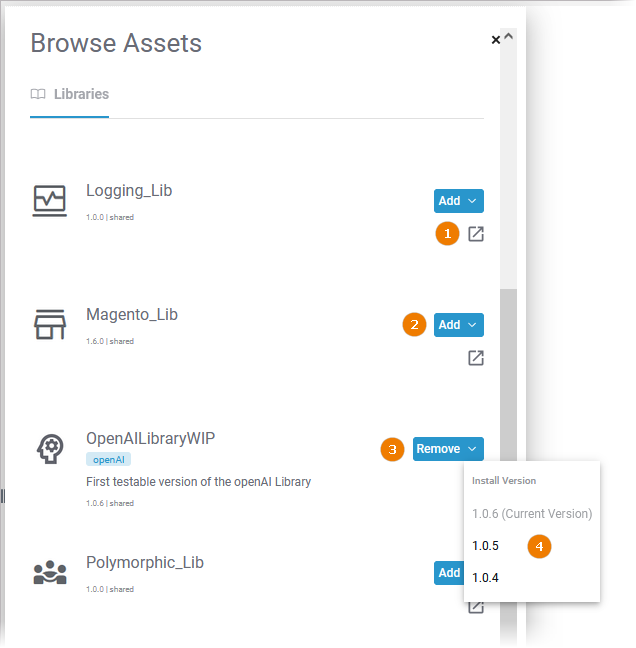
Via the Asset drawer you can
(1) access the documentation of an asset (if available)
(3) remove assets from a service
(4) manage the version of an asset used in a service
Searching the Asset Drawer
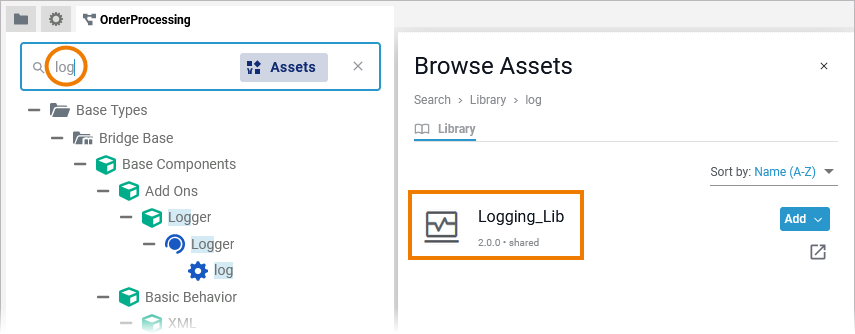
With the search box on top of the service panel you can search not only the panel itself, but also the Asset drawer for specific contents. Click into the search box and enter your search term:
While typing, the Asset drawer is filtered automatically. Only matching elements are displayed:
Use Clear search to reset the search box:
