If you have subscribed to a private API (refer to Subscribing to a Private API for details), the corresponding client and contract are displayed in the My Clients tab.
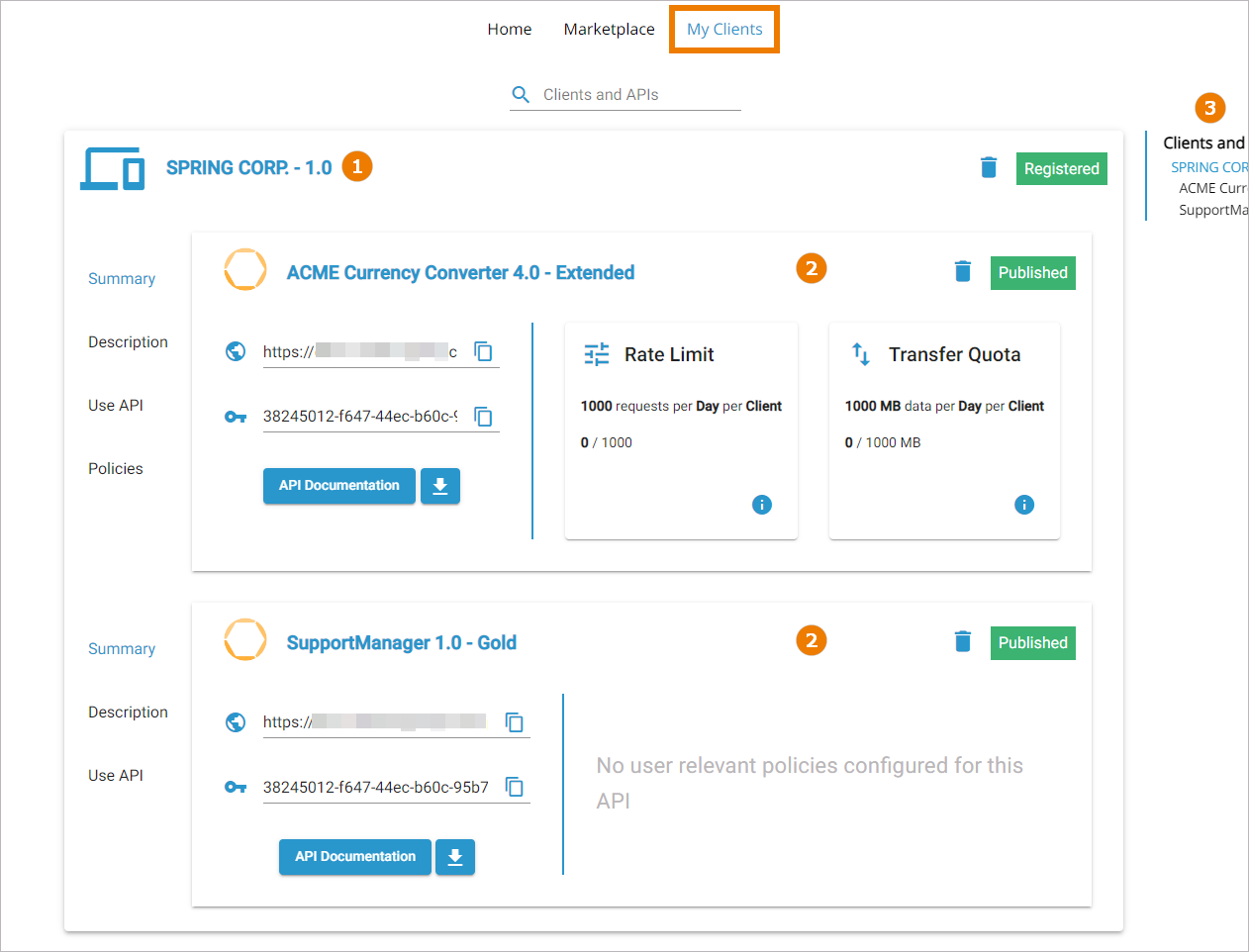
The My Clients tab shows the following:
-
Your clients
Each client is displayed in his own client card. -
The contracts of each client
Each contract is displayed in his own contract card. -
A table of contents
Use the overview to navigate within the My Clients tab.
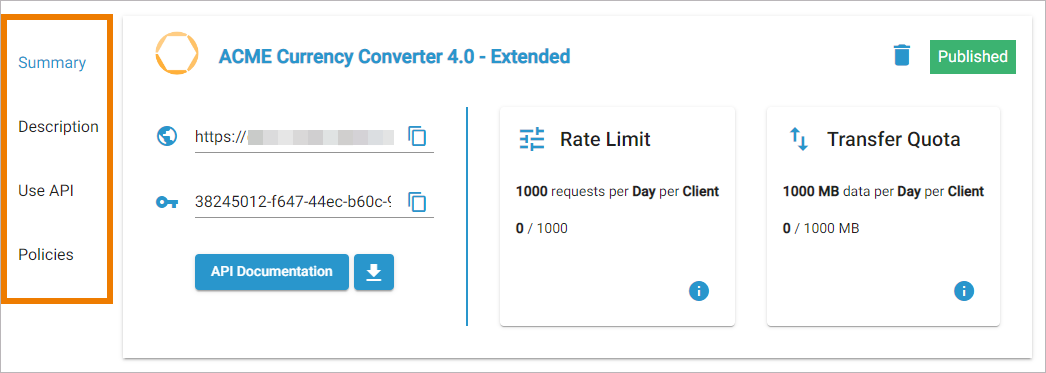
Each contract card contains a sidebar menu with the following options:
-
Summary
-
Description
-
Use API
-
Policies (only if polices are attached to the selected plan and used for this client by a contract)
Using the Contract Card Menu
Use the contract menu to access the contract details.
|
Menu |
Menu Options |
Description |
|---|---|---|
|
Summary |

|
Displays the URL of the API.Click Copy to copy the key to the clipboard. |

|
Displays the API Key. Click Copy to copy the key to the clipboard. |
|

|
Displays the Open API definition (Swagger) and allows for making test calls if the API is available. |
|

|
Downloads the API definition file. |
|
|
Policy Overview |
Displays an overview on the policies that have been assigned to the API. Click option i to open tab Policies containing more detailed information about the assigned policies. |
|
|
Description |
- |
Displays the extended API description that may be provided by the API creator (refer to API Settings > Documentation for details). Also, the status of the API (e.g. published, retired ...) is displayed in the upper right corner of this tab. |
|
Use API
|
|
Displays the Open API definition (Swagger) and allows for making test calls if the API is available. |
|
|
Downloads the API definition file. |
|
|
API Key |
Displays the API Key as HTTP request header and additonal explanations. Click Copy to copy the key to the clipboard. |
|
|
Endpoint |
Displays the API endpoint as HTTP query parameter. Click Copy to copy the key to the clipboard. |
|
|
Policies
|
Extended Policy Overview |
Displays detailed information about some assigned policies. For Rate Limiting and Transfer Quota, policy probes are active, showing the current status. Example: 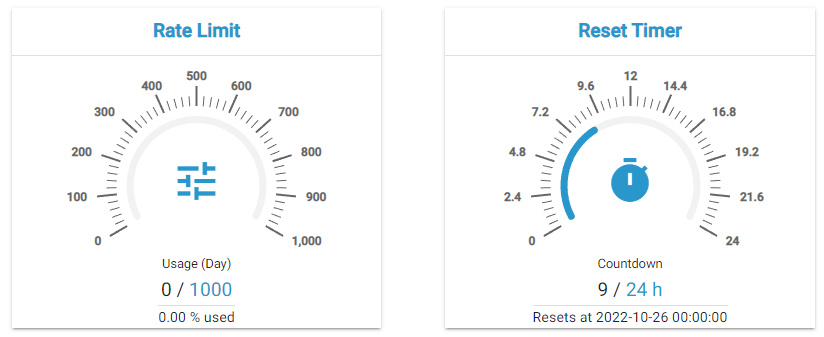
|
Policy Probes for IP-based Policies
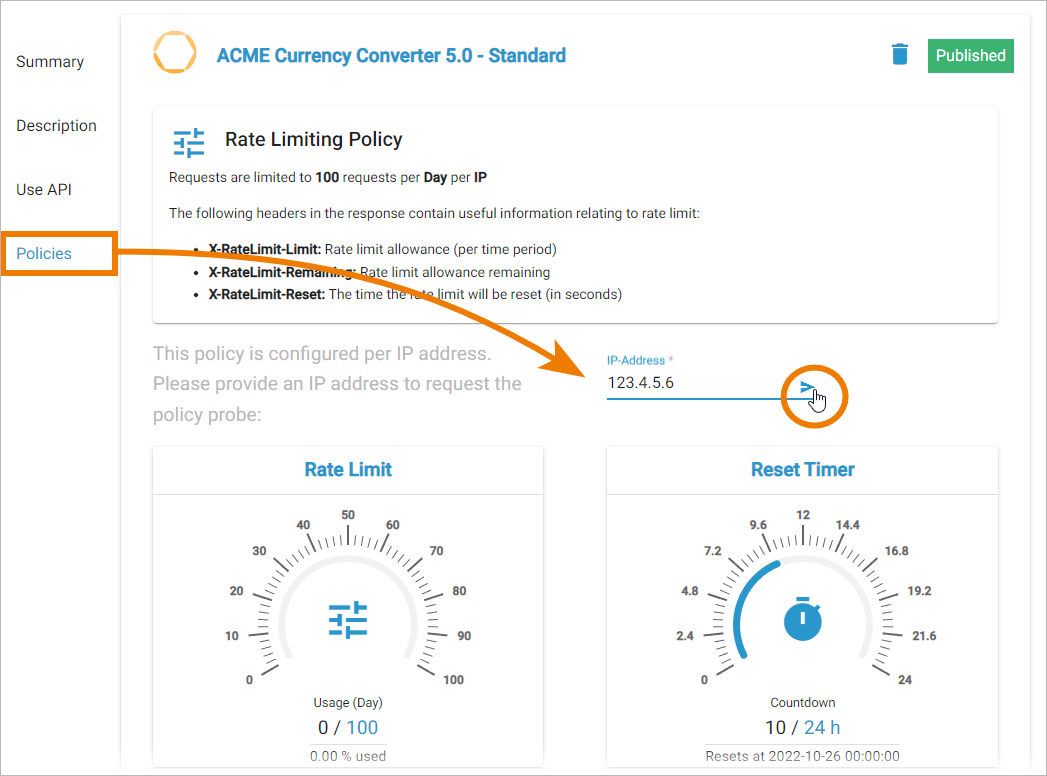
If the API you have subscribed to has assigned an IP-based policy, you need to insert an IP address for the policy probes to work.
If the API has assigned an IP-based policy, the policy probe card in the Summary menu contains an input field for the IP:
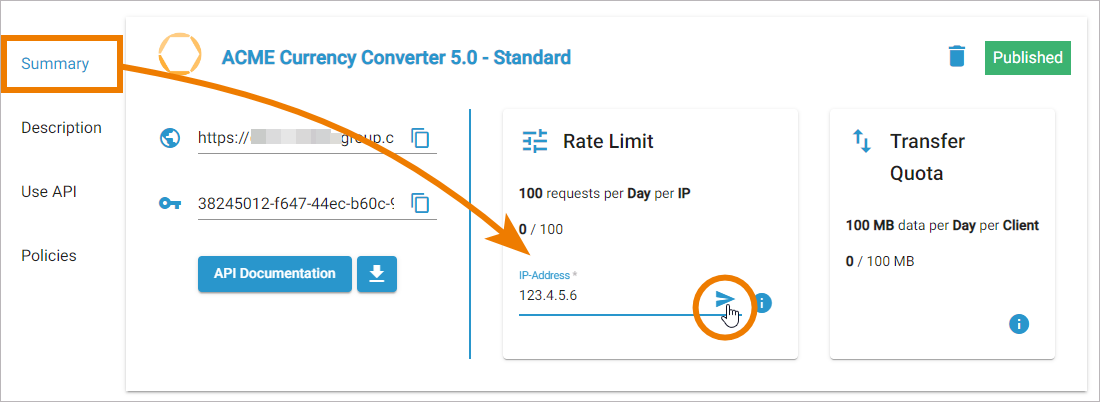
The input field is also available in the Policies menu. Enter a valid IP (v4/v6) address and click Send to fetch your remaining limits on the given API. The entered IP address correlates to your client: