
The Trace Analyzer features tracing through the execution path of a service. To do that, you need to import the service description first.
Get the Service Repository
Export the service repository from the Designer as described in Controls Panel > Export Compiled Service.
This guide uses the RESTAPI_SupportManager_Example as an example. The repository file can be downloaded from our documentation.
Import the Service Repository
Select Import > Import WSDL from the Analyzer menu. The Import WSDL dialog opens:
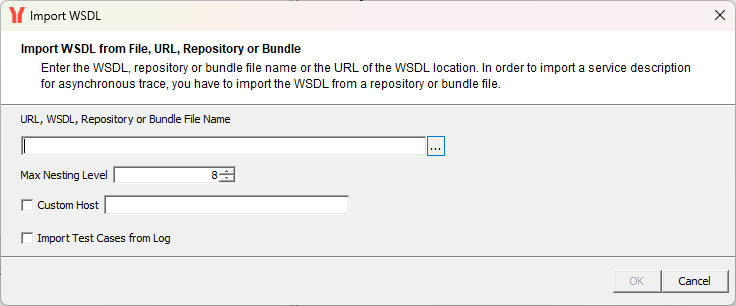
In general, the Analyzer can import
-
a WSDL file (.wsdl)
-
a URL providing the WSDL file
-
a WSDL file (.wsdl) in combination with a bridgeserver log file (.log)
-
an xUML service repository file (.rep)
-
an xUML service bundle file (.zip)
In the context of the Designer, you typically only use one of the last two options.
Selecting the File
Enter the file name or click … to open a file browser and select the file from your local system. In the file chooser dialog, navigate to the folder containing the repository file.
This guide uses the RESTAPI_SupportManager_Example as an example. The repository file can be downloaded from our documentation.
Confirm the import of the selected repository or bundle by clicking OK. See Import Options below for a description of all import options.
Next, you can enter a descriptive name for the imported service definition. Existing definitions from earlier imports are listed in the lower text box for orientation:
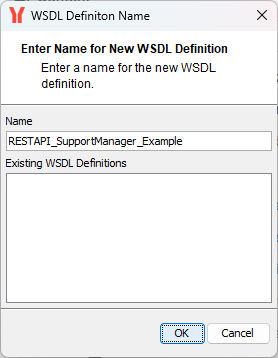
You can also update a description you imported earlier by selecting it from the list of existing definitions.
If you enter the name of an existing definition, a warning appears stating that data from the earlier import might be overwritten. If, for example, the new repository has some resources removed, these resources will also be deleted from the Trace Analyzer, including all current traces:
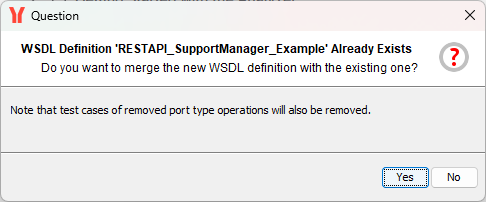
The imported service description is now saved in the Trace Analyzer.
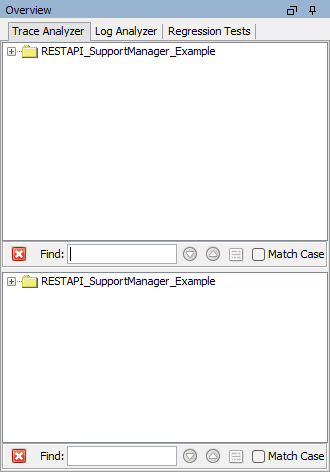
You can now connect selected service resources to a deployment of the service and activate trace as described on Connecting to an xUML Service.
Import Options
You can use the WSDL importer with the following options:
|
Option |
Description |
|---|---|
|
Maximum Nesting Level |
You can control the import of the service description using a maximum nesting level. The maximum nesting level specifies the maximum depth of the WSDL structure that the Analyzer considers. Elements at a level deeper than this value are not imported. This can be used to shorten very large WSDL files. |
|
Custom Host |
You can replace the service location from the WSDL with a custom host. This is helpful when you import the WSDL from a repository. In that case, the service location is usually set to |
|
Import Test Cases from Log |
This option is not applicable in Designer context. |
Related Content
Related Documentation:
Related Documentation: